> For the complete documentation index, see [llms.txt](https://docs.we360.ai/llms.txt). Markdown versions of documentation pages are available by appending `.md` to page URLs; this page is available as [Markdown](https://docs.we360.ai/reference/work-and-time-management/user-interfaces/chrome-extension.md).
# Chrome Extension
This page covers the Chrome Extension for the we360 app
The We360.ai **Chrome Extension** is a lightweight, browser-based tracking client. It is ideal for employees who work primarily inside the browser — or on devices where installing the full desktop agent isn't practical — and can be used **on its own**, without the desktop app.
The extension shares the same tracking policies as the desktop agent, so what it captures (screenshots, screen recording, idle detection, domain blocking) is governed by the **same** organization settings you configure in the portal.
{% hint style="info" %}
The extension and the desktop app are governed by one shared tracking policy. Anything you enable or disable in **Settings → Compliance & Security** and **Settings → Productivity** applies to both.
{% endhint %}
## Signing In
The extension signs in against your organization's workspace, just like the portal and desktop app.
{% stepper %}
{% step %}
### Install the extension
Add the We360.ai extension from the Chrome Web Store (or your organization's managed-extension rollout) and pin it to the toolbar.
{% endstep %}
{% step %}
### Enter your workspace
Click the extension icon and enter your **Workspace** name. This routes you to your organization's sign-in page.
{% endstep %}
{% step %}
### Log in
Enter your **Email** and **Password** (or continue with your organization's single sign-on). Once authenticated, the extension is ready to track.
{% endstep %}
{% endstepper %}
## Key Features
1. **Attendance from the browser:** Punch in, punch out, and manage breaks directly from the extension popup — no separate app required.
2. **Activity tracking:** Records the active tab's website and page title, along with keyboard and mouse activity, to measure active versus idle time. Individual keystrokes are **never** recorded (no keylogging).
3. **Screen capture:** Periodically captures screenshots of the visible tab when screenshots are enabled in your organization's policy.
4. **Screen recording:** Captures screen recordings when recording is enabled in your organization's policy.
5. **Live view:** Supports on-demand live streaming of the employee's screen to authorized managers in the portal.
6. **Idle detection:** Detects inactivity and can automatically punch the employee out after a configured idle period.
7. **Website blocking:** Enforces your organization's blocked-domain list — a restricted site is closed or replaced with a policy notice.
8. **Projects & tasks:** Lets employees select the project or task they are working on so time is attributed correctly.
## When to Use the Extension vs. the Desktop App
{% columns %}
{% column %}
### Chrome Extension
* Best for browser-first roles and quick rollouts.
* No installation of a desktop application required.
* Captures browser activity, attendance, and screen data for the browser.
{% endcolumn %}
{% column %}
### Desktop App
* Best for full-device visibility across all applications.
* Tracks every desktop application, not just the browser.
* Adds USB monitoring, device/location tracking, and virtual-desktop (Citrix/RDP/VDI) support.
{% endcolumn %}
{% endcolumns %}
{% hint style="info" %}
For deep, system-wide monitoring, deploy the [Desktop App](/reference/work-and-time-management/user-interfaces/desktop-app.md). Many organizations use the extension for browser-heavy teams and the desktop agent everywhere else.
{% endhint %}
{% hint style="info" %}
This extension is an alternative for users to access features without downloading the application onto their computers.
Initializing and configuration must be done via web portal for assigning Admin role, allotting teams, etc.
{% endhint %}
## Getting Started
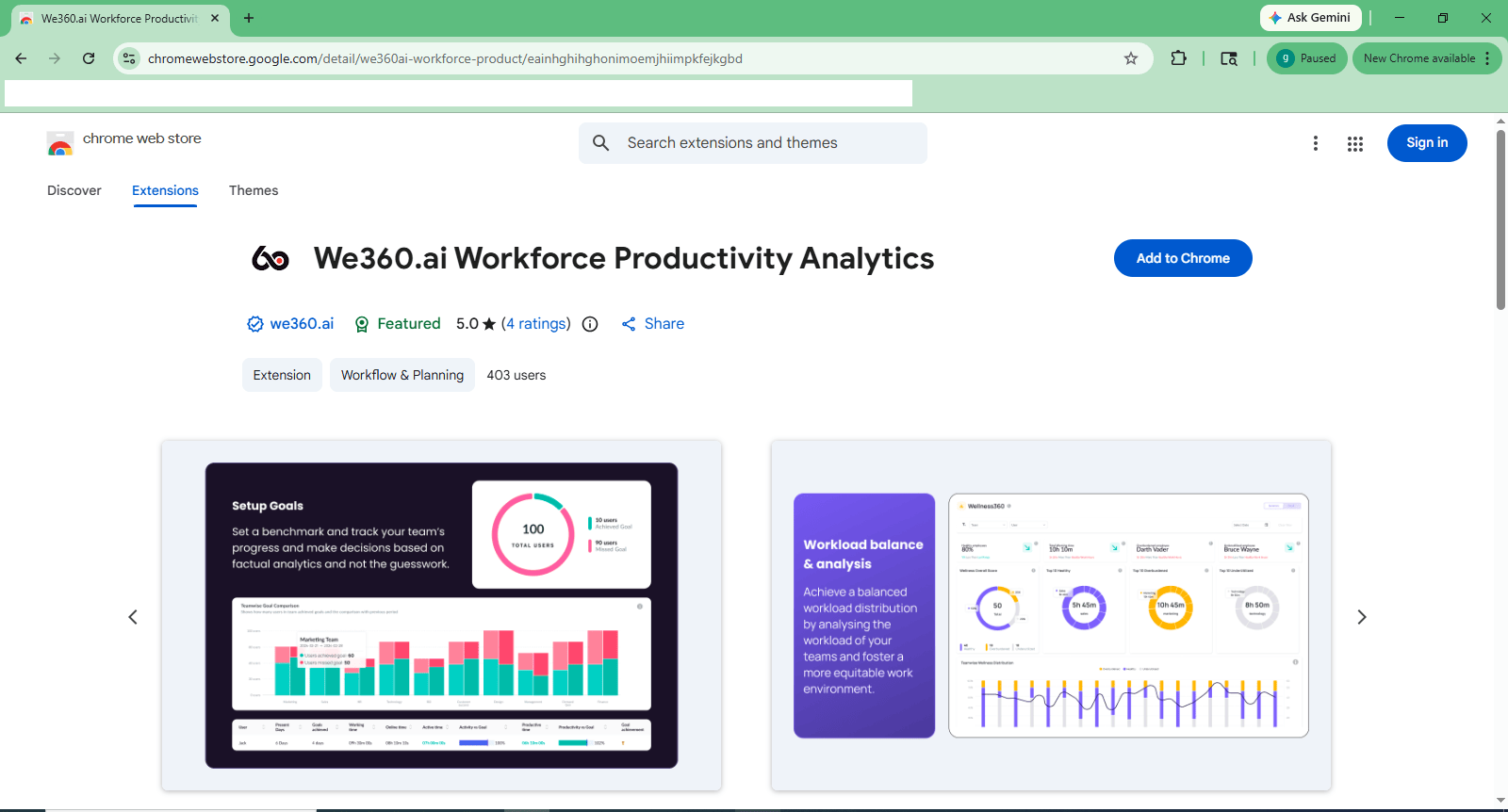
It's super simple for users to add the we360 chrome extension:
* Click [here ](https://chromewebstore.google.com/detail/we360ai-workforce-product/eainhghihghonimoemjhiimpkfejkgbd)to access the extension on the Chrome Web Store
* Alternatively, head over to the [Chrome Web Store](https://chromewebstore.google.com/) and search for `We360.ai Workforce Productivity Analytics` .
* Click on `Add to Chrome`
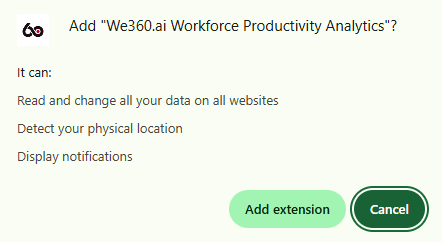
* This will open up the following pop up box:
* Click on `Add extension`
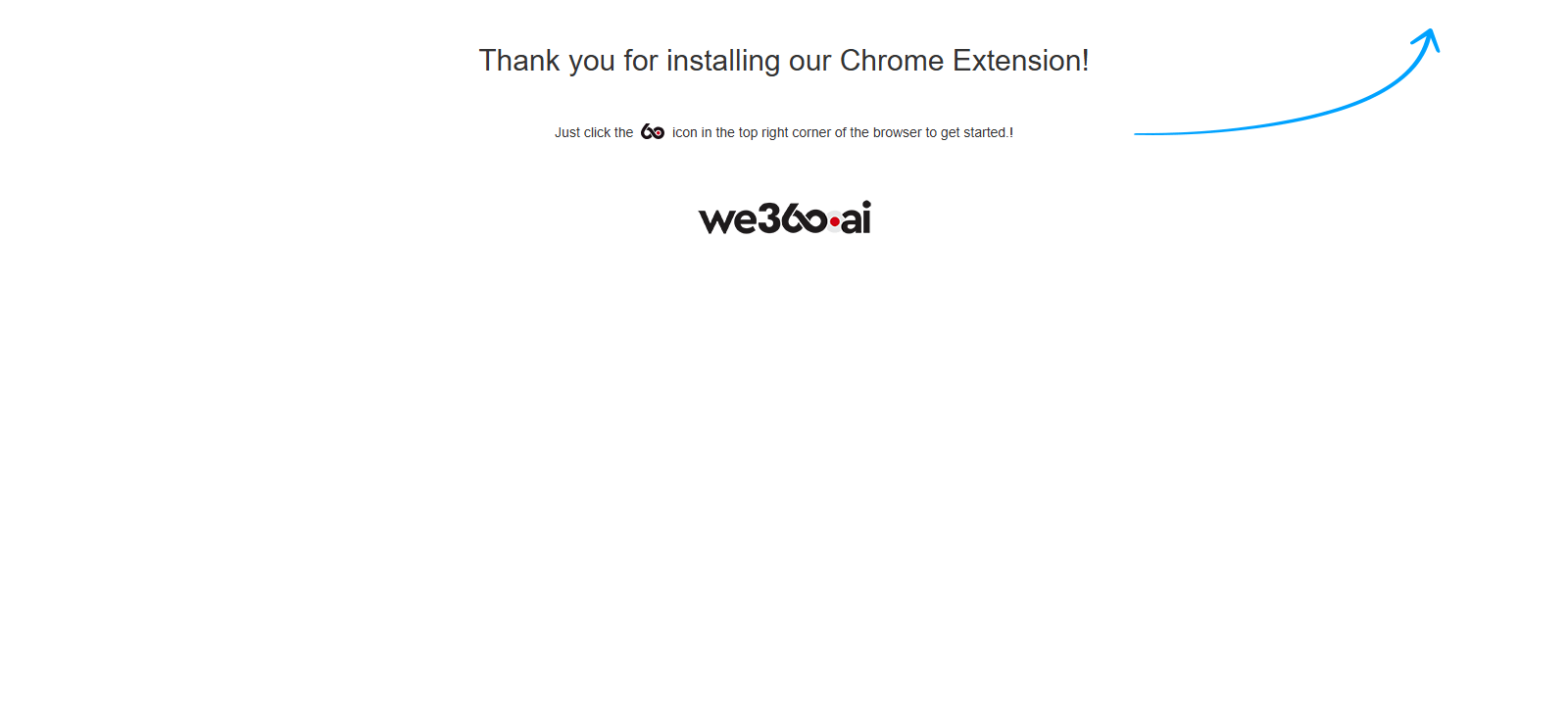
* This will add the extension, and display this Thank You page.
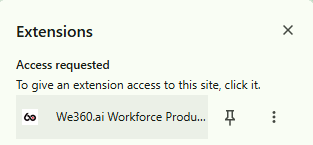
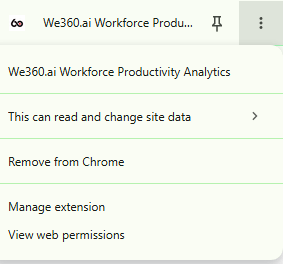
* Give the extension permissions required:
* Now you're ready to sign in.
## Signing in
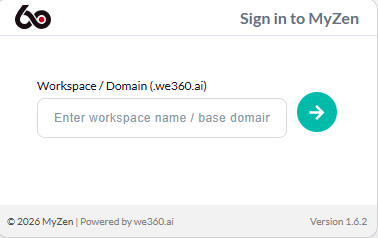
* Enter the Workspace/Domain name assigned to your organization
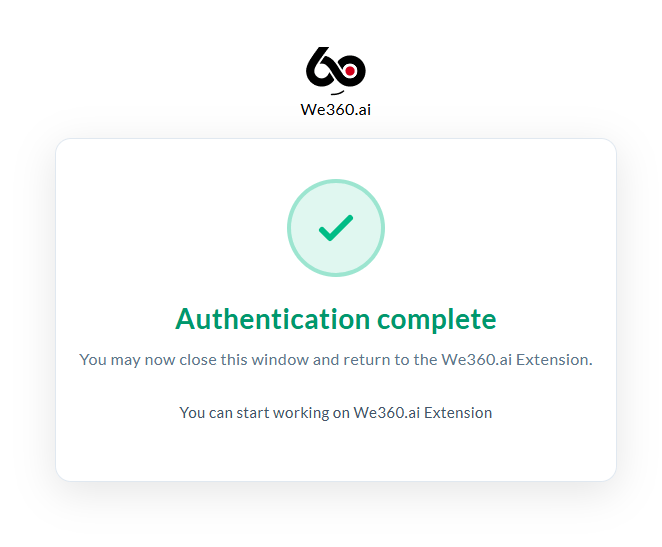
* Enter your email ID and password to sign into your account. Once signed it, you'll see an authentication complete prompt as so:
### Punch In/Out
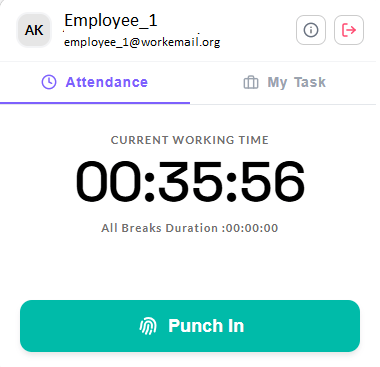
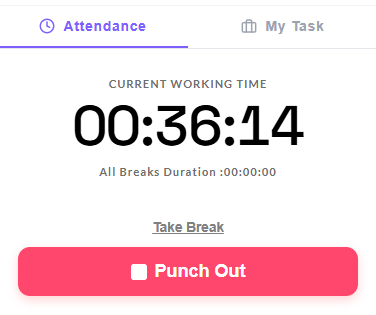
Once logged in, the extension will be available to use to punch in, take a break, and punch out.
The `Take Break` option is visible in grey above the Punch Out button.
{% hint style="info" %}
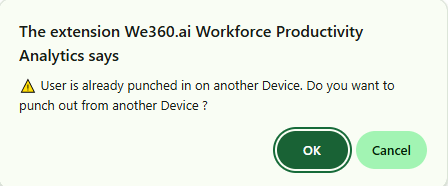
If user is already punched in via another instance of the app (Mobile App or Computer Application), then the following prompt will appear:
{% endhint %}
### Tasks/Project
The extension also allows the user to track their tasks with a timer.
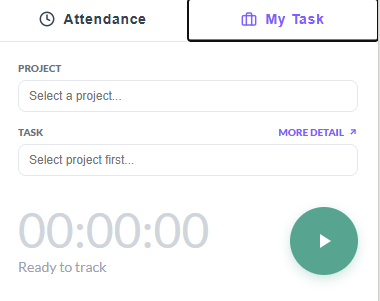
In the extension, switch from Attendance to My Task:
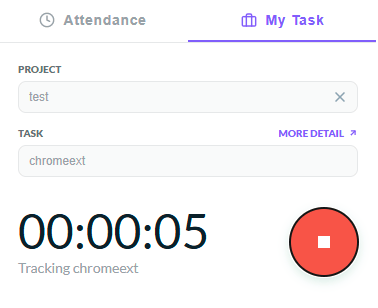
Then, select the project you're working on, and the task within that project. Users can search for an existing task by name, or also create a New Task on selected project.
{% hint style="info" %}
Projects and Tasks must be defined previously via the web portal.
{% endhint %}
Once selected, you can start the in-built timer and get started on your work.
When changing tasks, you can stop the time tracker.
{% hint style="info" %}
Clicking on `More Detail >>` will redirect to the task selected, otherwise it opens the Projects tab in the portal.
{% endhint %}
### Other Features
Pressing the button button allows the options of toggling Auto Punch-In ON/OFF, as well as checking date & time of last sync, and an option to manually sync to current time. The prompt also displays version of extension being used. Make sure to use the latest version for the most updated features & support.

The Domain name on top left is a hyperlink that, when clicked, redirects the user to the Projects Dashboard in the web portal.
The button logs the user out.
---
# Agent Instructions
This documentation is published with GitBook. GitBook is the documentation platform designed so that both humans and AI agents can read, navigate, and reason over technical content effectively. Learn more at gitbook.com.
## Querying This Documentation
If you need additional information that is not directly available in this page, you can query the documentation dynamically by asking a question.
Perform an HTTP GET request on the current page URL with the `ask` query parameter, and the optional `goal` query parameter:
```
GET https://docs.we360.ai/reference/work-and-time-management/user-interfaces/chrome-extension.md?ask=&goal=
```
`ask` is the immediate question: it should be specific, self-contained, and written in natural language.
`goal` is optional and describes the broader end goal you are ultimately trying to accomplish on behalf of the user. GitBook uses it to tailor the answer towards what is most useful for that goal.
The response will contain a direct answer to the question and relevant excerpts and sources from the documentation.
Use this mechanism when the answer is not explicitly present in the current page, you need clarification or additional context, or you want to retrieve related documentation sections.

 {% endhint %}
### Tasks/Project
The extension also allows the user to track their tasks with a timer.
In the extension, switch from Attendance to My Task:
{% endhint %}
### Tasks/Project
The extension also allows the user to track their tasks with a timer.
In the extension, switch from Attendance to My Task:
 button allows the options of toggling Auto Punch-In ON/OFF, as well as checking date & time of last sync, and an option to manually sync to current time. The prompt also displays version of extension being used. Make sure to use the latest version for the most updated features & support.

The Domain name on top left is a hyperlink that, when clicked, redirects the user to the Projects Dashboard in the web portal.
The
button allows the options of toggling Auto Punch-In ON/OFF, as well as checking date & time of last sync, and an option to manually sync to current time. The prompt also displays version of extension being used. Make sure to use the latest version for the most updated features & support.

The Domain name on top left is a hyperlink that, when clicked, redirects the user to the Projects Dashboard in the web portal.
The  button logs the user out.
---
# Agent Instructions
This documentation is published with GitBook. GitBook is the documentation platform designed so that both humans and AI agents can read, navigate, and reason over technical content effectively. Learn more at gitbook.com.
## Querying This Documentation
If you need additional information that is not directly available in this page, you can query the documentation dynamically by asking a question.
Perform an HTTP GET request on the current page URL with the `ask` query parameter, and the optional `goal` query parameter:
```
GET https://docs.we360.ai/reference/work-and-time-management/user-interfaces/chrome-extension.md?ask=
button logs the user out.
---
# Agent Instructions
This documentation is published with GitBook. GitBook is the documentation platform designed so that both humans and AI agents can read, navigate, and reason over technical content effectively. Learn more at gitbook.com.
## Querying This Documentation
If you need additional information that is not directly available in this page, you can query the documentation dynamically by asking a question.
Perform an HTTP GET request on the current page URL with the `ask` query parameter, and the optional `goal` query parameter:
```
GET https://docs.we360.ai/reference/work-and-time-management/user-interfaces/chrome-extension.md?ask=