> For the complete documentation index, see [llms.txt](https://docs.we360.ai/llms.txt). Markdown versions of documentation pages are available by appending `.md` to page URLs; this page is available as [Markdown](https://docs.we360.ai/reference/work-and-time-management/user-interfaces/mobile-app.md).

# Mobile App

We360.ai mobile app — field employee tracking, GPS attendance, and remote team management on iOS and Android.

We360.ai allows employees to log in, punch in, and track their productivity via their mobile phones by downloading the we360 app from the Play Store (Android) and the App Store (Apple).

This page highlights mobile application features and usage

{% hint style="info" %}
Initial set-up, configuration, and on-boarding of the application must be done via portal
{% endhint %}

{% hint style="info" %}
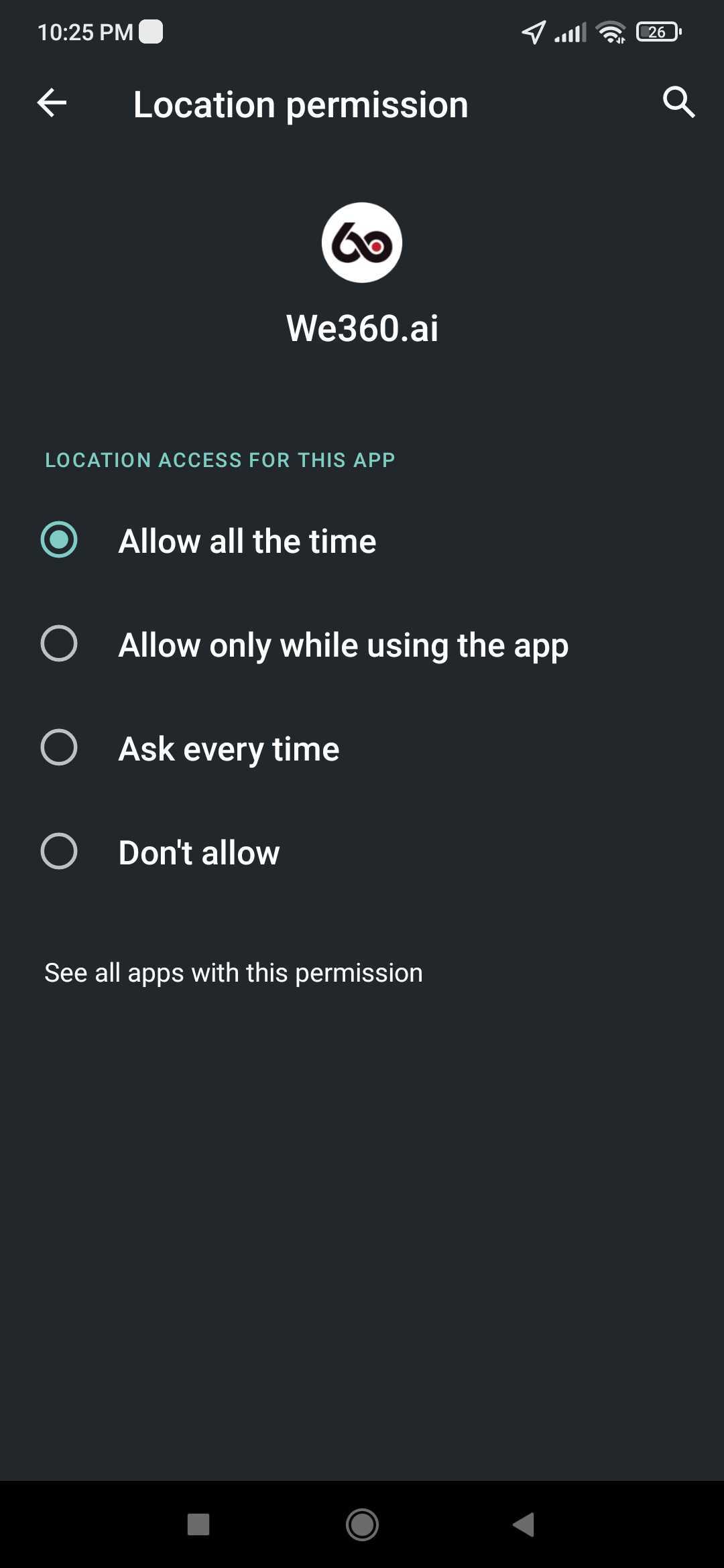
App requires Location permission access to "Allow all the time" to accurately track Field

<img src="https://312671257-files.gitbook.io/~/files/v0/b/gitbook-x-prod.appspot.com/o/spaces%2FQ3PNLgMbrzO5nP1CwEjg%2Fuploads%2Fgit-blob-3e41b916cba254b5d30781a5eeef3d44f6b6a1ab%2Fmobile-app-android-location-permission-allow-all-time.jpg?alt=media" alt="Android location permission screen for the We360.ai mobile app with Allow all the time selected" data-size="original">
{% endhint %}

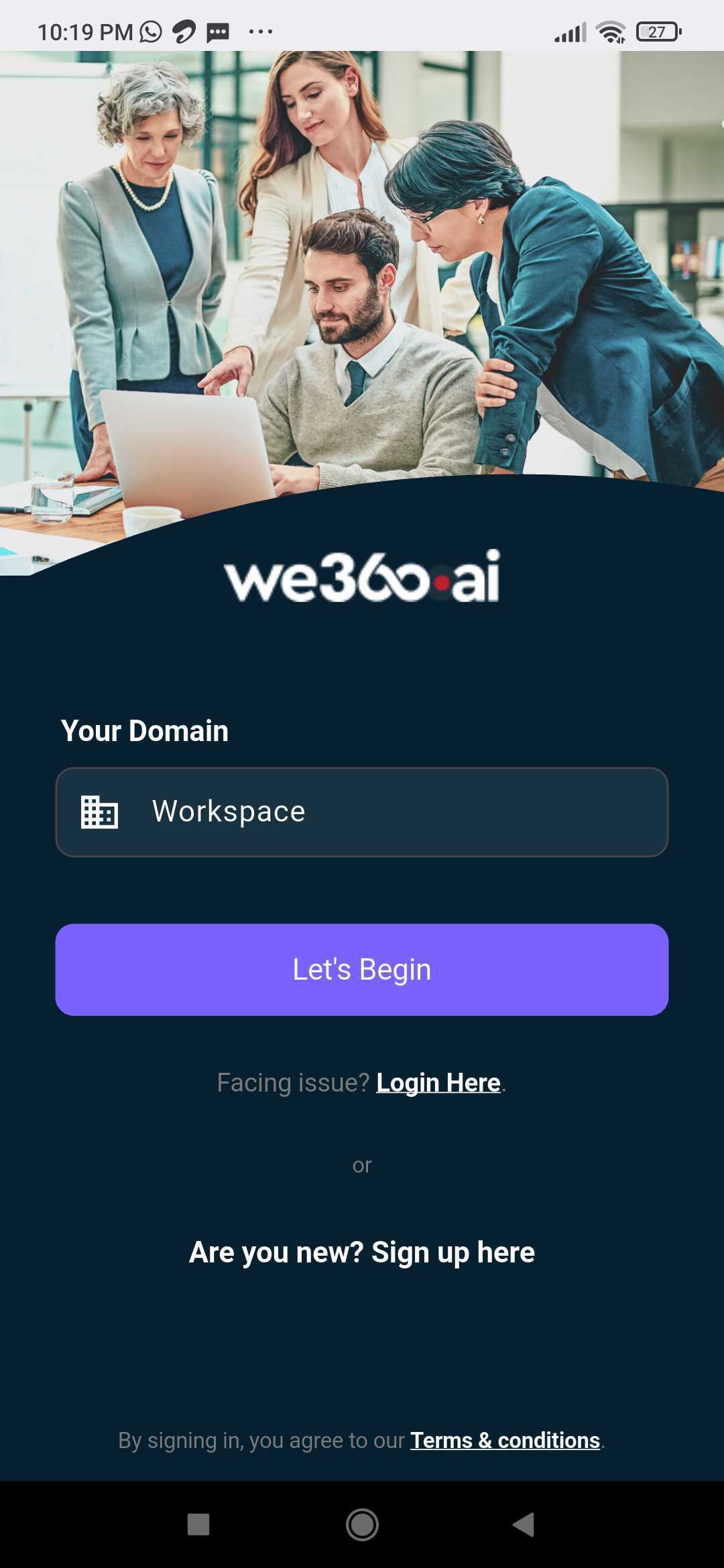
Once access is granted, app can be opened to see this:

<div align="center"><figure><img src="https://312671257-files.gitbook.io/~/files/v0/b/gitbook-x-prod.appspot.com/o/spaces%2FQ3PNLgMbrzO5nP1CwEjg%2Fuploads%2Fgit-blob-01802f254074fb0b004497557911b49b8ec04471%2Fmobile-app-workspace-domain-welcome-screen.jpg?alt=media" alt="We360.ai mobile app welcome screen with the workspace domain field and Let&#x27;s Begin button" width="188"><figcaption></figcaption></figure></div>

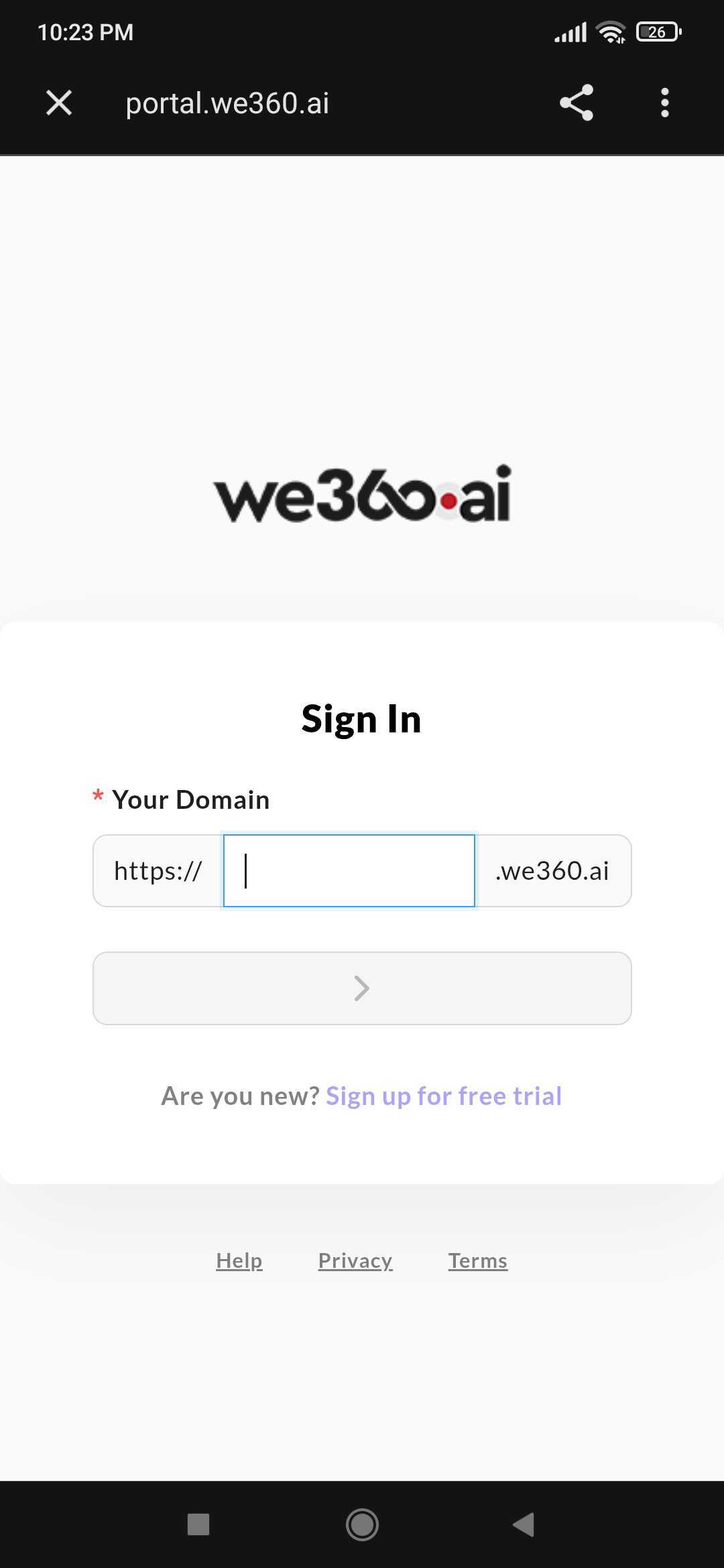
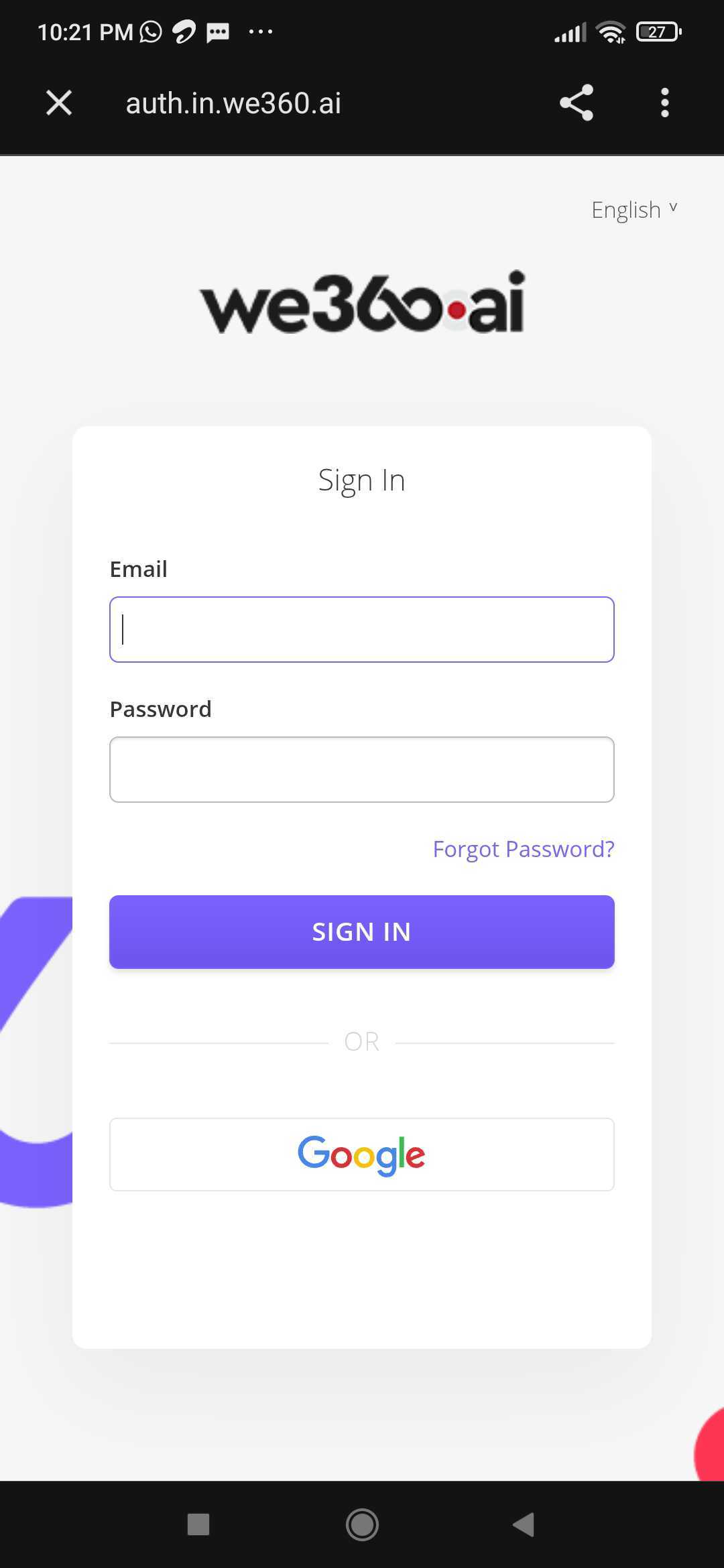
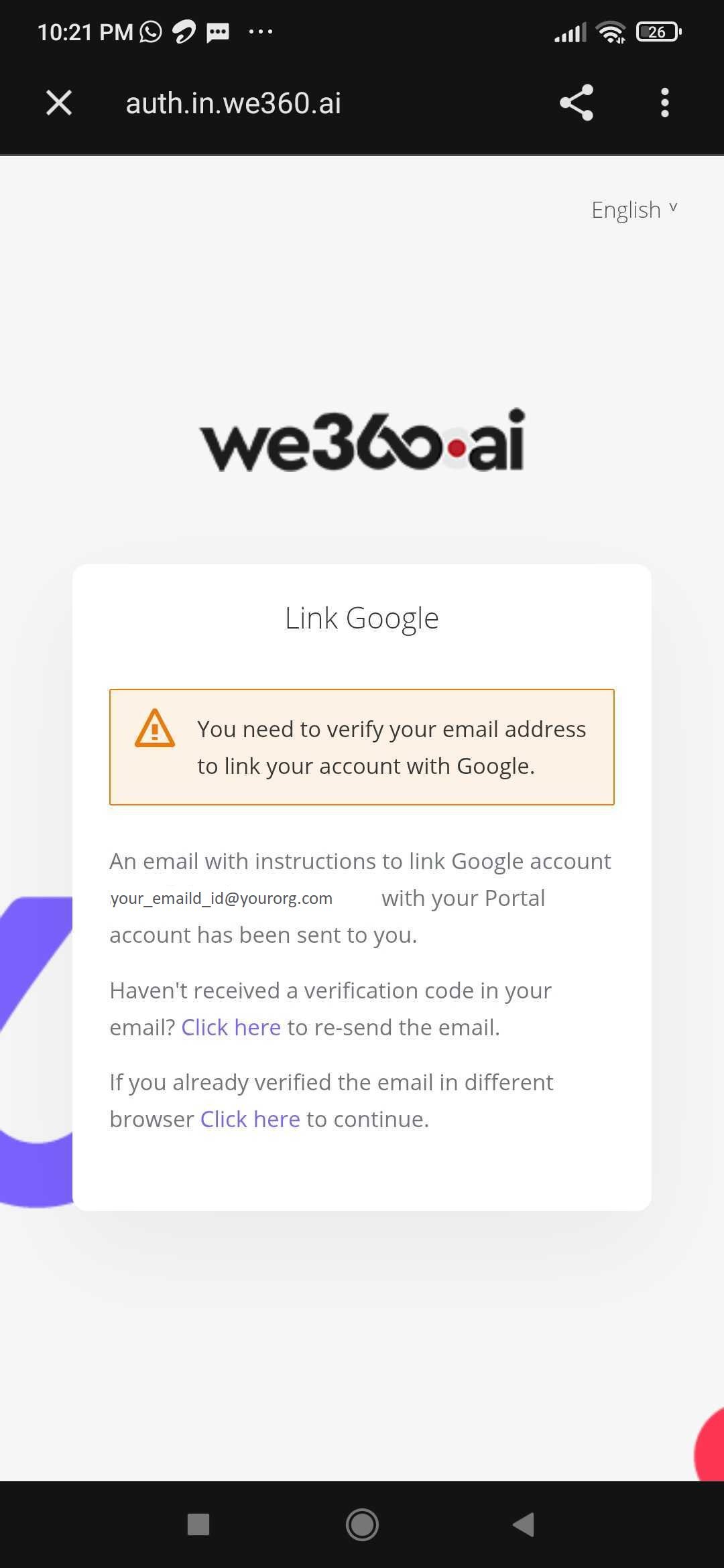
This is the first screen. Users/Employees must enter the Workspace (Domain) as configured for the organization, and click `Let's Begin`, which will lead to the authorization page wherein user email and password must be entered. Alternatively, sign-in via Google account is also supported.

<div align="left"><figure><img src="https://312671257-files.gitbook.io/~/files/v0/b/gitbook-x-prod.appspot.com/o/spaces%2FQ3PNLgMbrzO5nP1CwEjg%2Fuploads%2Fgit-blob-7673c39b07db322ff4ac724feaaeeb4ba7267683%2Fmobile-app-portal-sign-in-domain-prompt.jpg?alt=media" alt="Portal sign-in page in the mobile browser asking for the organisation&#x27;s We360.ai subdomain" width="188"><figcaption></figcaption></figure> <figure><img src="https://312671257-files.gitbook.io/~/files/v0/b/gitbook-x-prod.appspot.com/o/spaces%2FQ3PNLgMbrzO5nP1CwEjg%2Fuploads%2Fgit-blob-e068bc2b932648d61f4a2ac1427793b18cc89a2b%2Fmobile-app-sign-in-email-password-google.jpg?alt=media" alt="We360.ai sign-in form on mobile with email, password, and Google sign-in options" width="188"><figcaption></figcaption></figure> <figure><img src="https://312671257-files.gitbook.io/~/files/v0/b/gitbook-x-prod.appspot.com/o/spaces%2FQ3PNLgMbrzO5nP1CwEjg%2Fuploads%2Fgit-blob-953261430c3ef05ecf5641b09943d9be67b327ec%2Fmobile-app-link-google-email-verification.jpg?alt=media" alt="Link Google prompt asking the user to verify their email before connecting a Google account" width="188"><figcaption><p>To link with Google, email verification is needed</p></figcaption></figure></div>

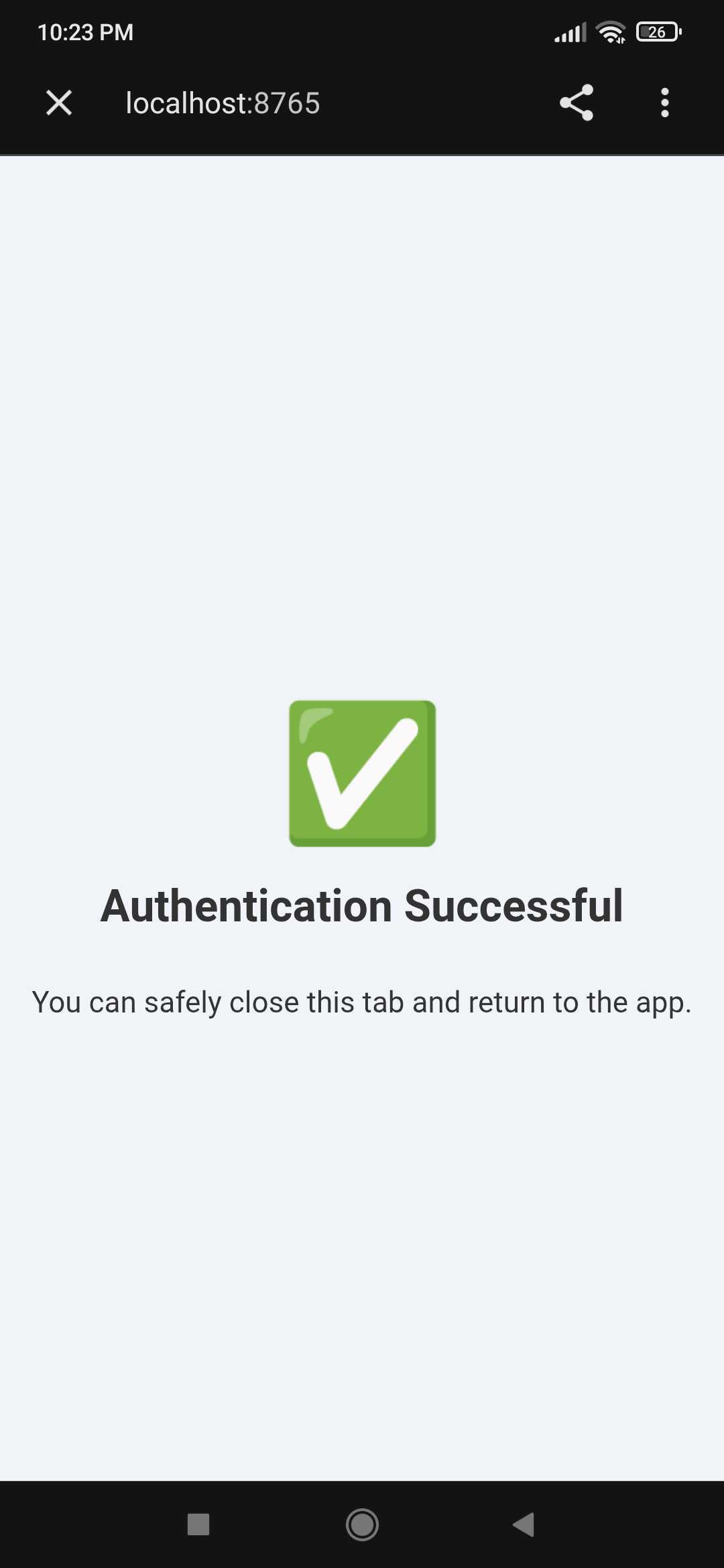
Once signed in, following confirmation will appear:

<figure><img src="https://312671257-files.gitbook.io/~/files/v0/b/gitbook-x-prod.appspot.com/o/spaces%2FQ3PNLgMbrzO5nP1CwEjg%2Fuploads%2Fgit-blob-56182d78e364901909fb85f04484e619c79cfbbc%2Fmobile-app-authentication-successful-confirmation.jpg?alt=media" alt="Authentication Successful confirmation shown after signing in, prompting a return to the app" width="188"><figcaption></figcaption></figure>

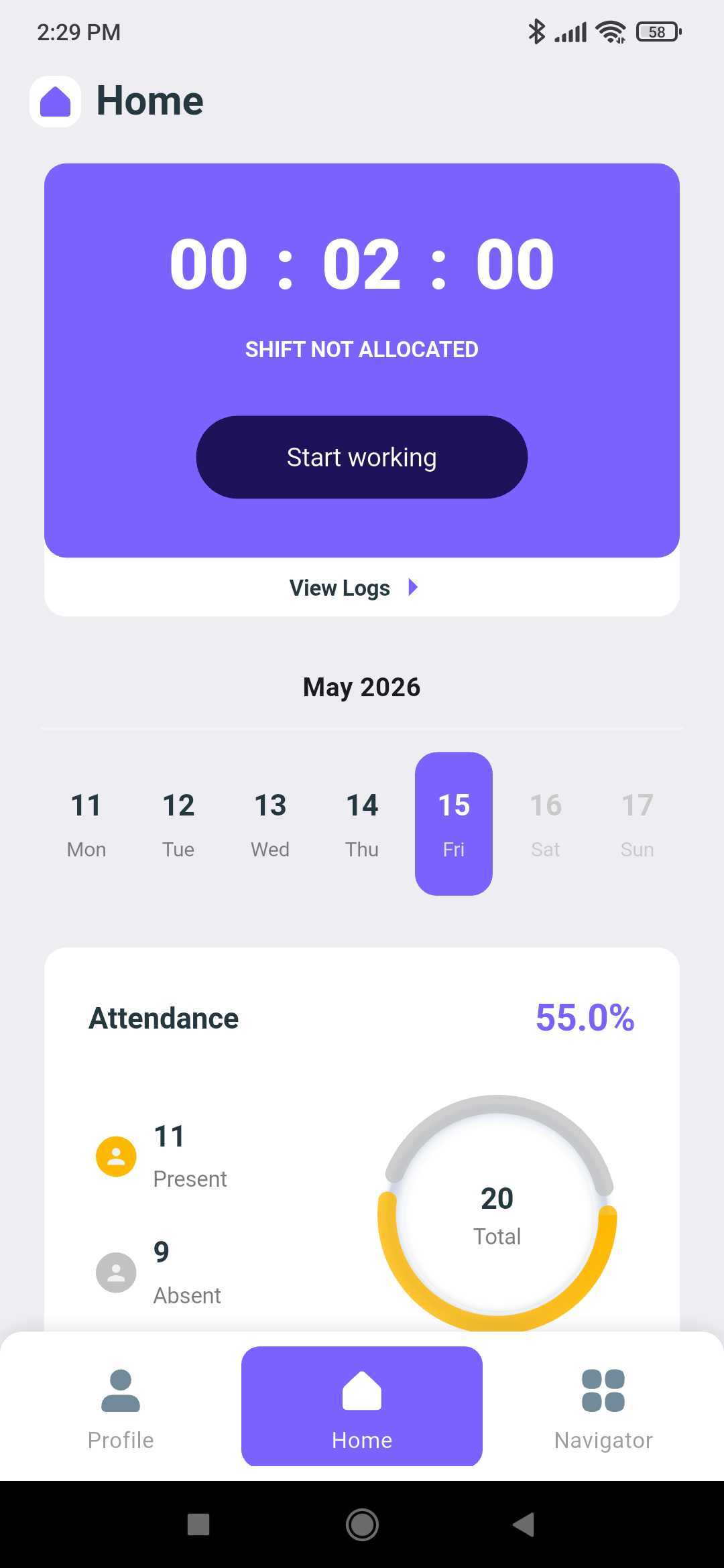
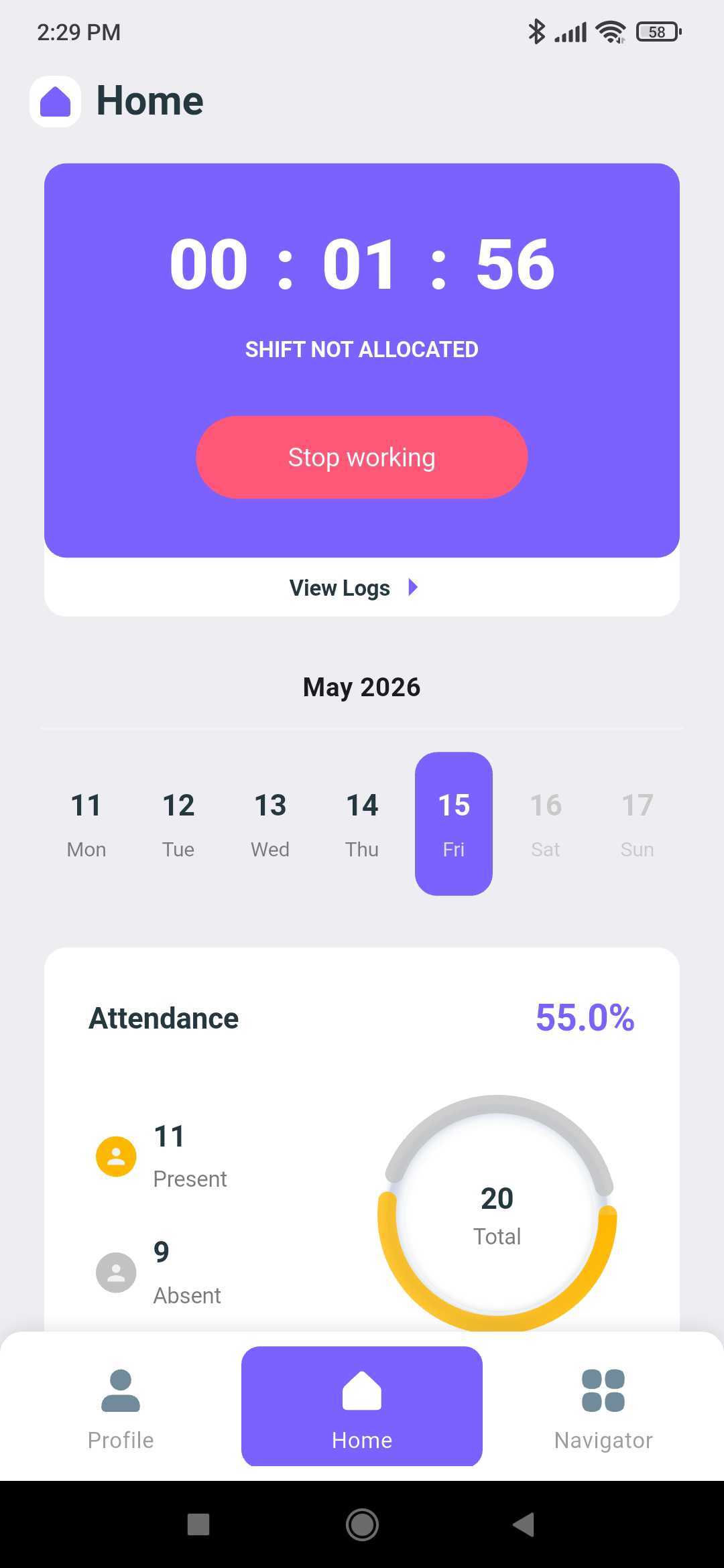
Logging in to the user dashboard will open this:

<div><figure><img src="https://312671257-files.gitbook.io/~/files/v0/b/gitbook-x-prod.appspot.com/o/spaces%2FQ3PNLgMbrzO5nP1CwEjg%2Fuploads%2Fgit-blob-5126830a38f9928dd0a1eb904062b50d0f01df62%2Fmobile-app-home-start-working-punch-in.jpg?alt=media" alt="Mobile app Home tab with the shift timer, Start working punch-in button, and attendance summary"><figcaption></figcaption></figure> <figure><img src="https://312671257-files.gitbook.io/~/files/v0/b/gitbook-x-prod.appspot.com/o/spaces%2FQ3PNLgMbrzO5nP1CwEjg%2Fuploads%2Fgit-blob-3b199e90180bb2297010dd00b3f65bf247d41e4f%2Fmobile-app-home-stop-working-punch-out.jpg?alt=media" alt="Mobile app Home tab with a running shift timer and the Stop working punch-out button"><figcaption></figcaption></figure></div>

Press on `Start Working` to punch in. Similarly, once shift is over, click on `Stop Working` to finish.

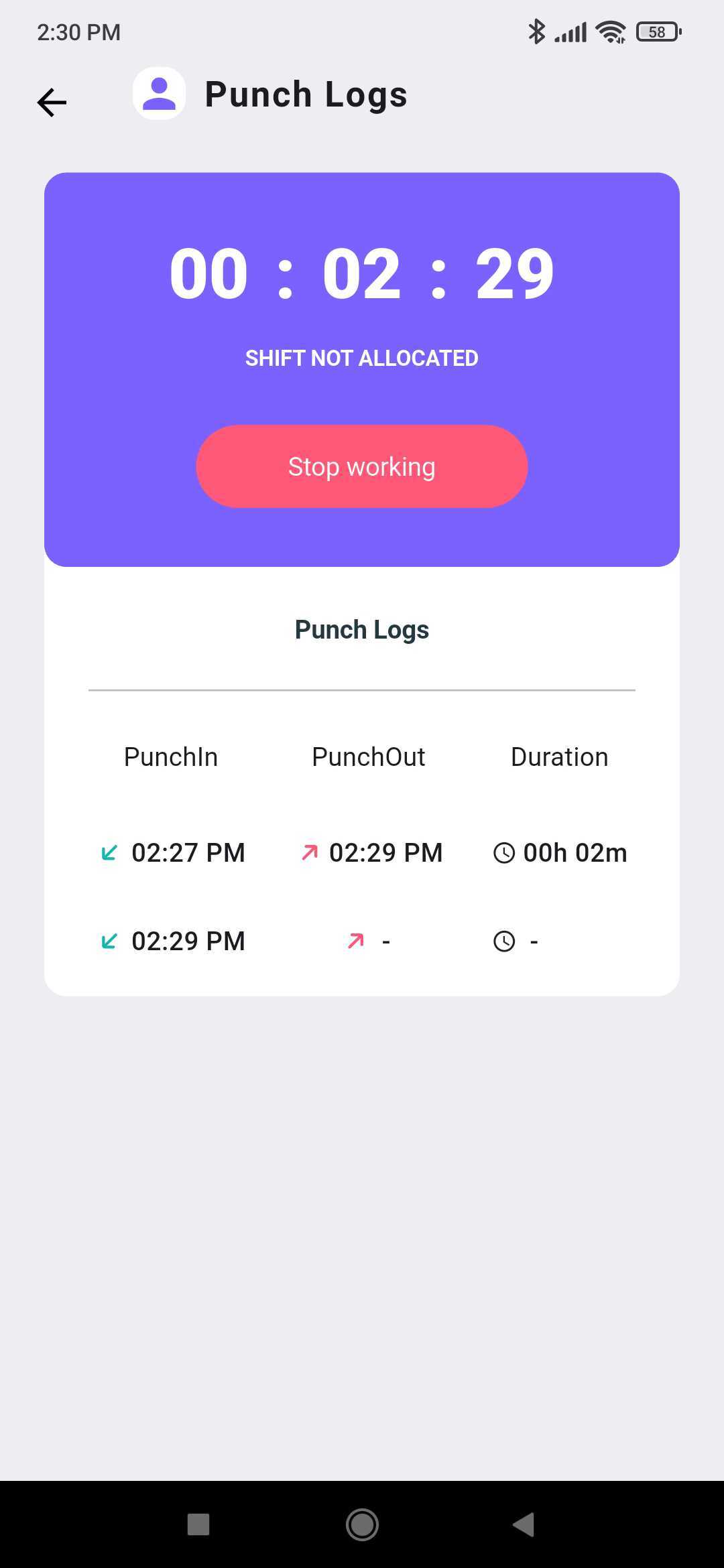
By pressing `View Logs`, the Punch Logs will be visible highlighting punch in time, punch out time, and duration of hours worked.

<figure><img src="https://312671257-files.gitbook.io/~/files/v0/b/gitbook-x-prod.appspot.com/o/spaces%2FQ3PNLgMbrzO5nP1CwEjg%2Fuploads%2Fgit-blob-b5453679ac449e88c9e09067fefd1dfb58b0c011%2Fmobile-app-punch-logs-in-out-duration.jpg?alt=media" alt="Punch Logs screen listing punch-in time, punch-out time, and duration for each work session" width="375"><figcaption></figcaption></figure>

At a glance, the Home tab (Center Bottom) shows Attendance.

Bottom Left is the Profile tab, and Bottom Right is the Navigator.

{% hint style="info" %}
Navigator tab has more features available to user accounts tagged as "Admin" or "Super Admin"
{% endhint %}

### Profile

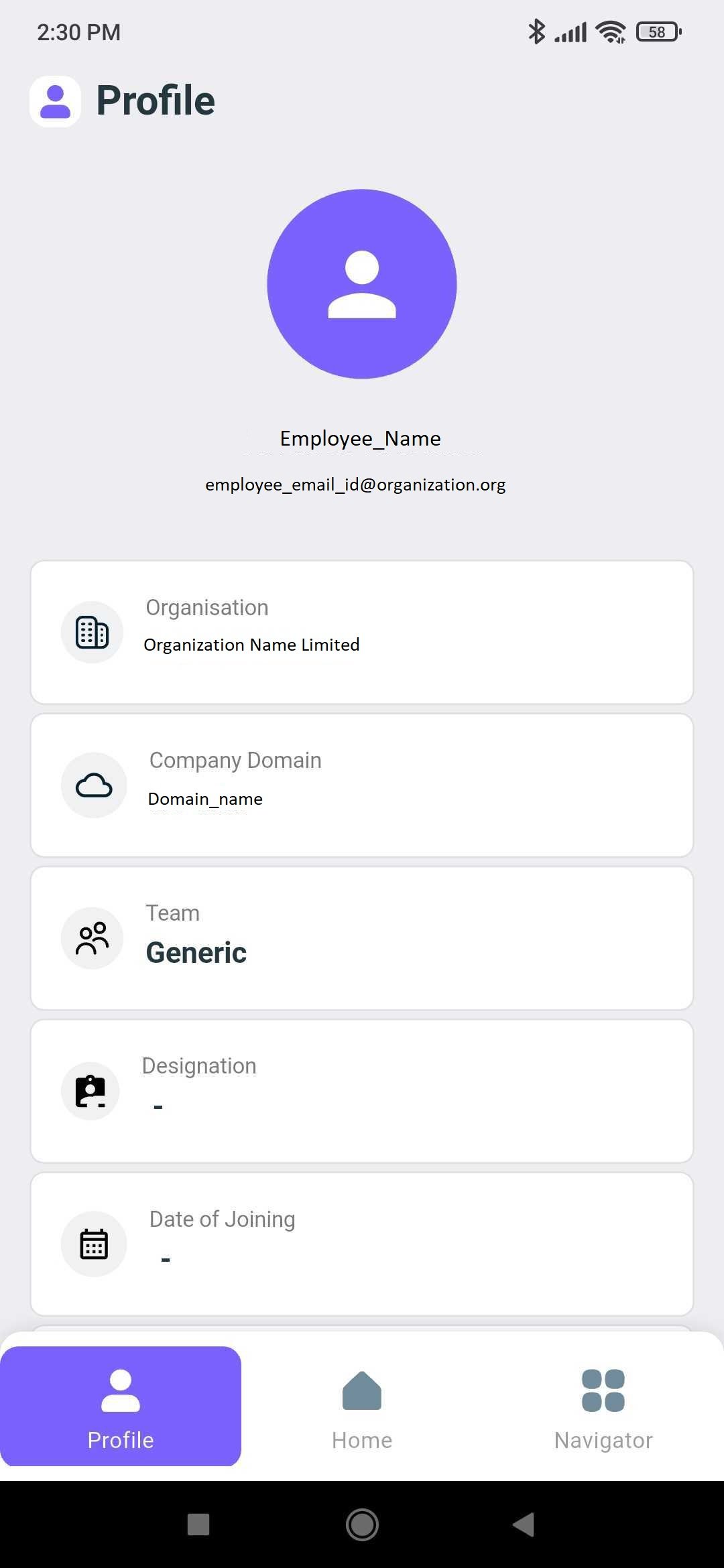
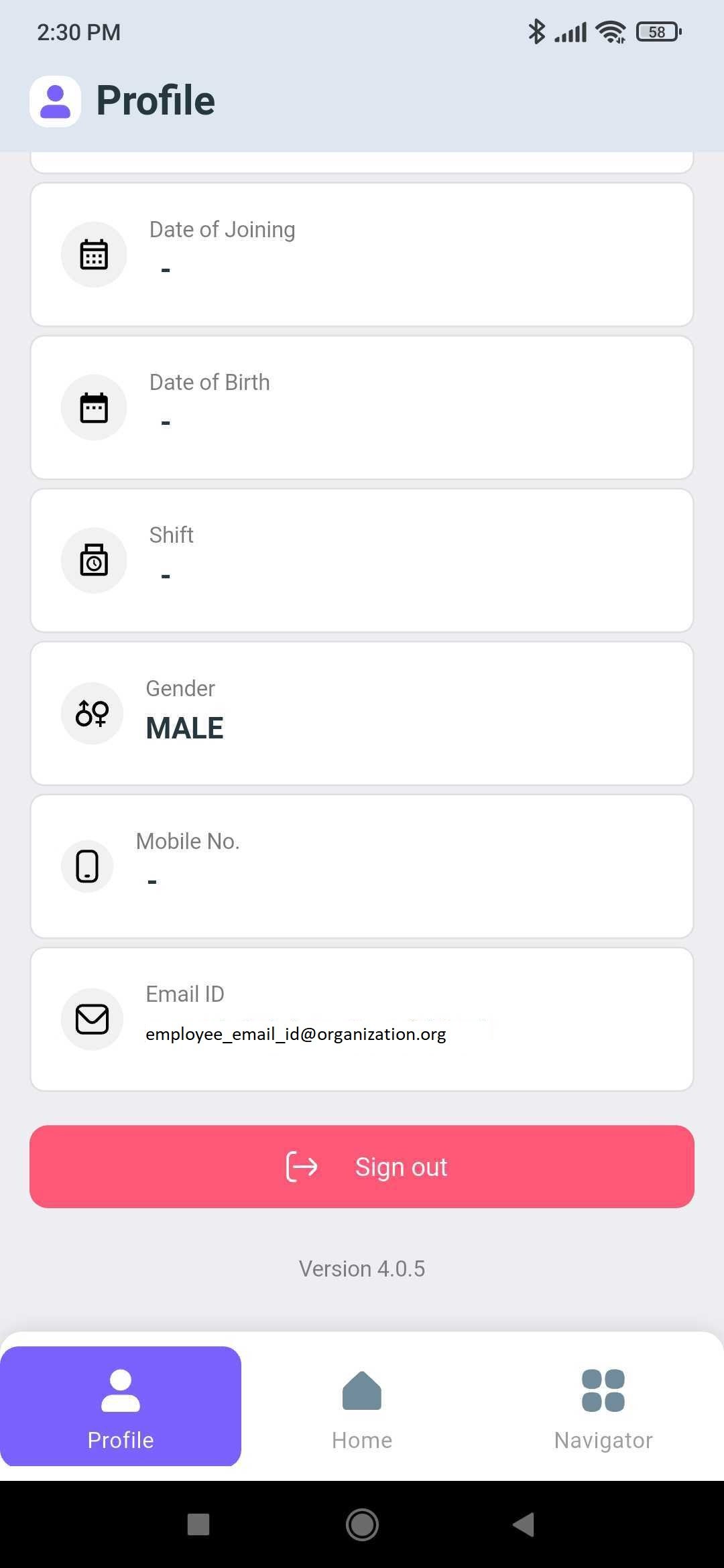
Displays employee information as entered in portal and allows Sign Out.

<div align="left"><figure><img src="https://312671257-files.gitbook.io/~/files/v0/b/gitbook-x-prod.appspot.com/o/spaces%2FQ3PNLgMbrzO5nP1CwEjg%2Fuploads%2Fgit-blob-619b90d36f73be58c77906a45b6a3ee35d3361d8%2Fmobile-app-profile-employee-details-top.jpg?alt=media" alt="Profile tab showing the employee&#x27;s organisation, company domain, team, designation, and joining date" width="188"><figcaption></figcaption></figure> <figure><img src="https://312671257-files.gitbook.io/~/files/v0/b/gitbook-x-prod.appspot.com/o/spaces%2FQ3PNLgMbrzO5nP1CwEjg%2Fuploads%2Fgit-blob-1c5ad969d5509618cdf5b24b5db620cb1635f7c4%2Fmobile-app-profile-sign-out-button.jpg?alt=media" alt="Profile tab scrolled to shift, gender, mobile number, email, and the Sign out button with app version" width="188"><figcaption></figcaption></figure></div>

### Home

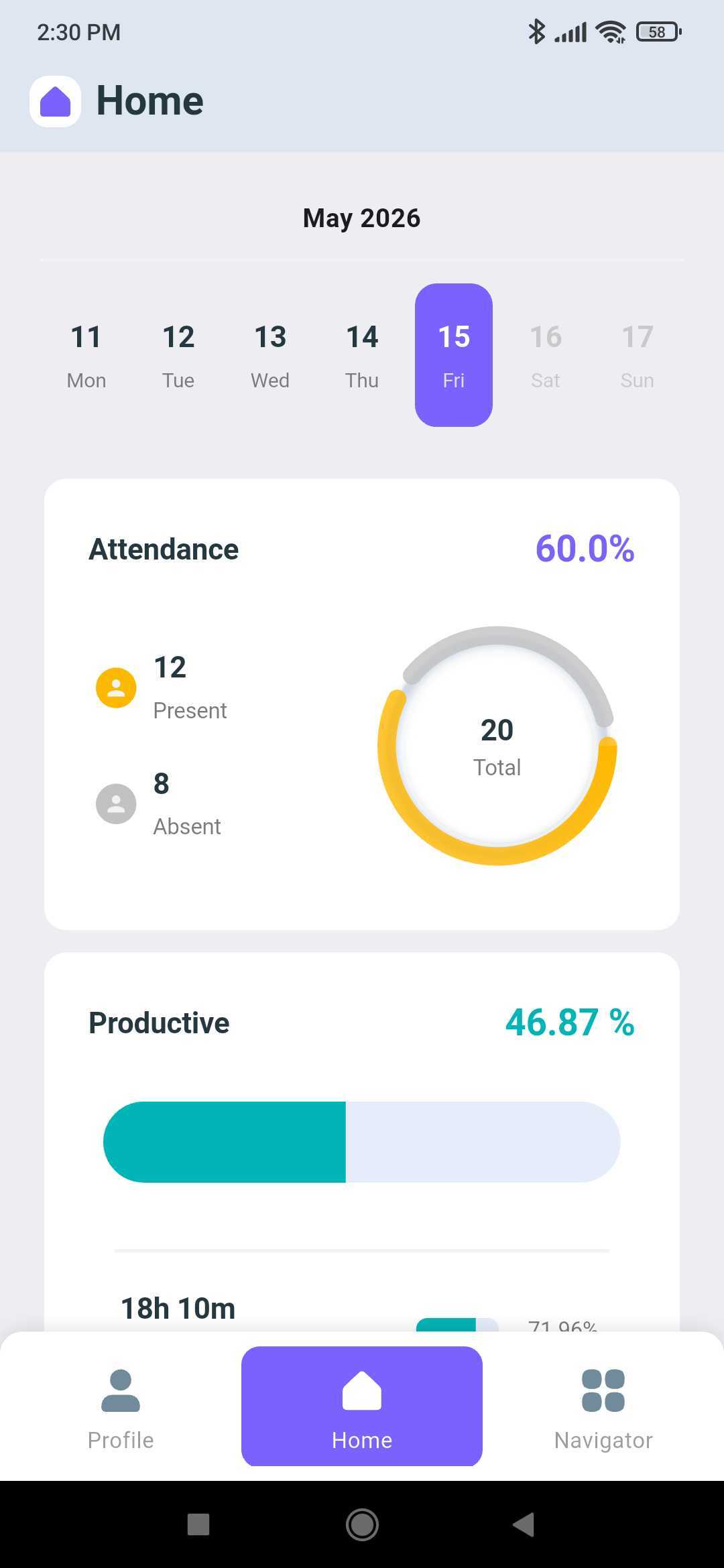
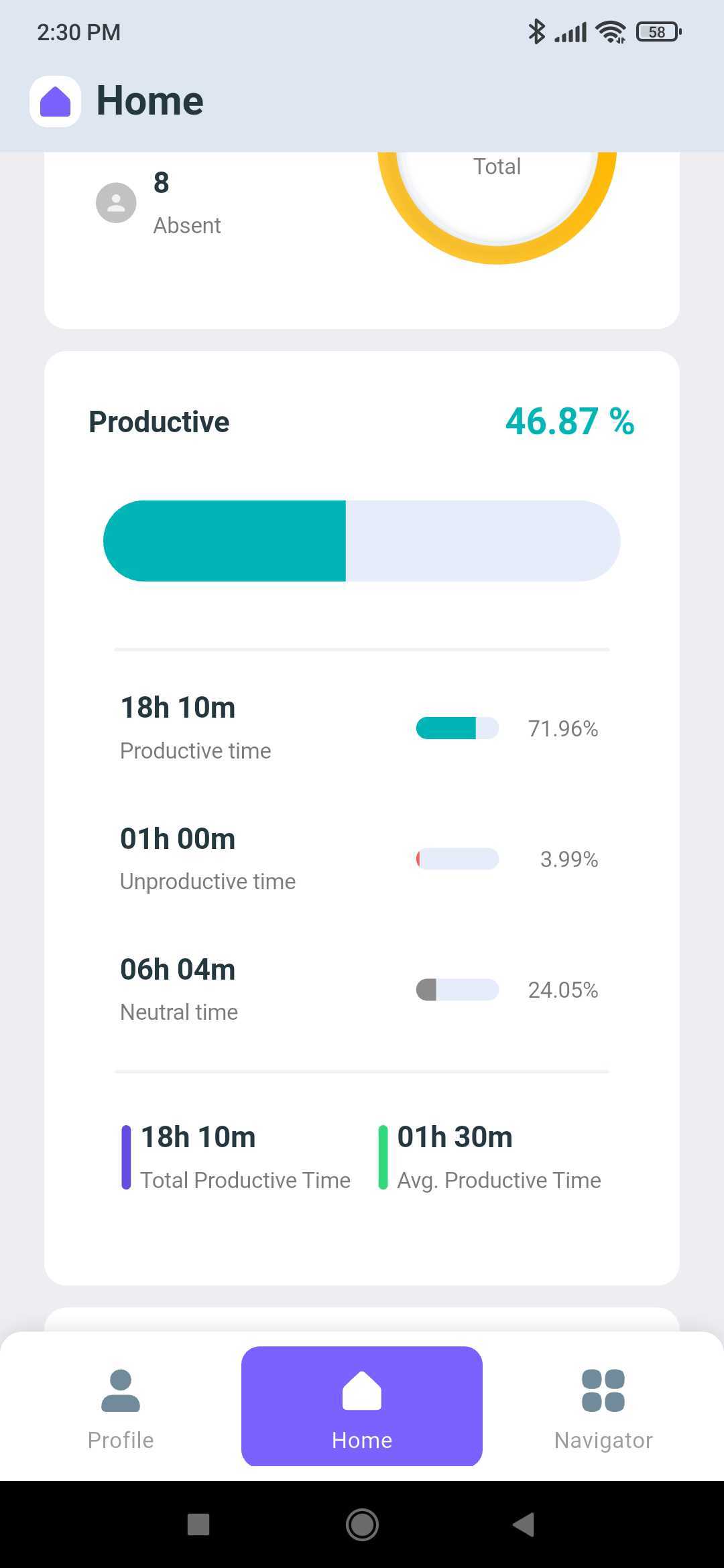
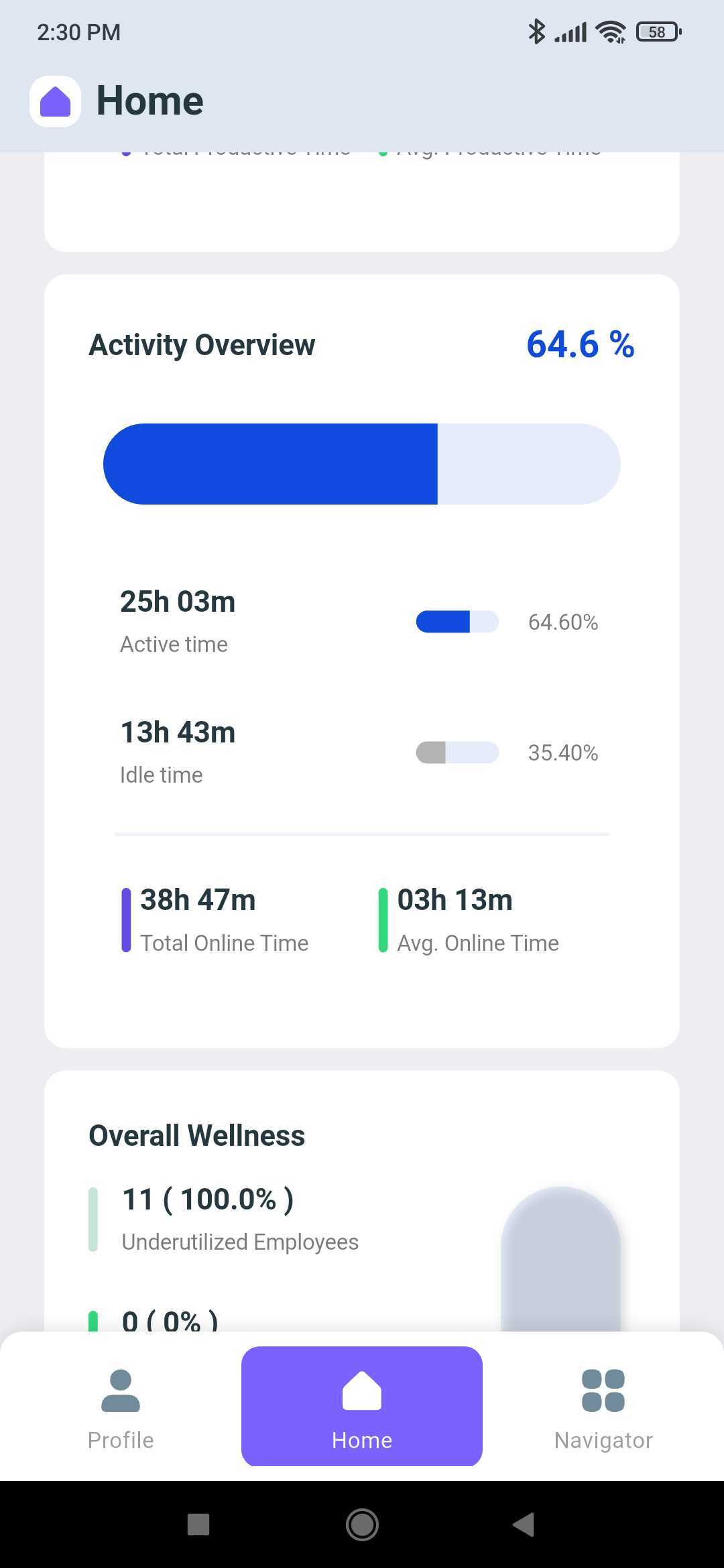
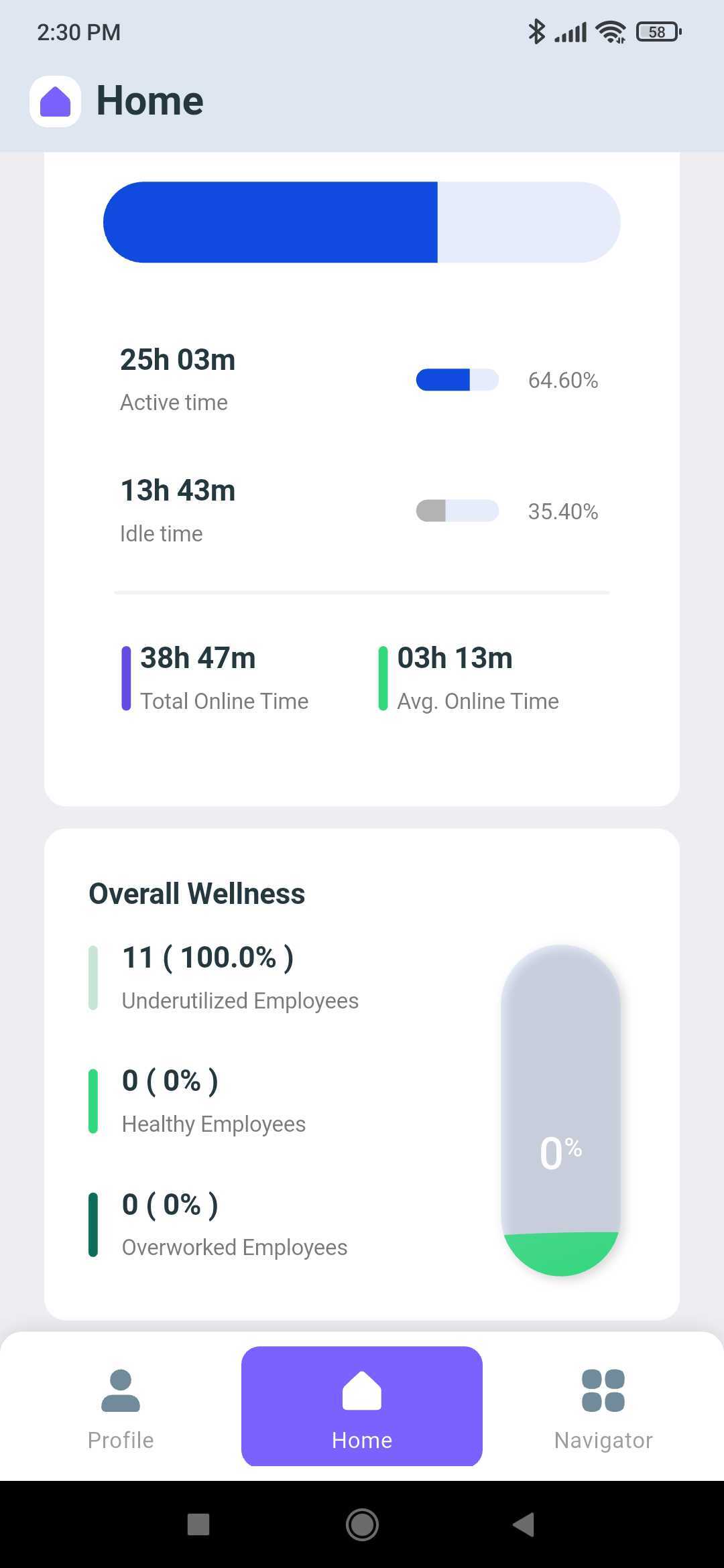
This tab shows Attendance, Productivity, Activity, and Overall Wellness at a glance.

<div><figure><img src="https://312671257-files.gitbook.io/~/files/v0/b/gitbook-x-prod.appspot.com/o/spaces%2FQ3PNLgMbrzO5nP1CwEjg%2Fuploads%2Fgit-blob-f07e91a041d840555fd4a1a680bce43c12b7291a%2Fmobile-app-home-attendance-productivity-cards.jpg?alt=media" alt="Home tab with the date strip, team attendance donut chart, and productive percentage bar"><figcaption></figcaption></figure> <figure><img src="https://312671257-files.gitbook.io/~/files/v0/b/gitbook-x-prod.appspot.com/o/spaces%2FQ3PNLgMbrzO5nP1CwEjg%2Fuploads%2Fgit-blob-fc60ca162a4b6071030bd053b415f6209ca6a6fd%2Fmobile-app-home-productive-time-breakdown.jpg?alt=media" alt="Home tab Productive card breaking down productive, unproductive, and neutral time with averages"><figcaption></figcaption></figure> <figure><img src="https://312671257-files.gitbook.io/~/files/v0/b/gitbook-x-prod.appspot.com/o/spaces%2FQ3PNLgMbrzO5nP1CwEjg%2Fuploads%2Fgit-blob-fecf42213ca3b9347eefe6dc25fa15ee03c0bb86%2Fmobile-app-home-activity-overview-card.jpg?alt=media" alt="Home tab Activity Overview card showing active time, idle time, and total online time"><figcaption></figcaption></figure> <figure><img src="https://312671257-files.gitbook.io/~/files/v0/b/gitbook-x-prod.appspot.com/o/spaces%2FQ3PNLgMbrzO5nP1CwEjg%2Fuploads%2Fgit-blob-ecdc86d12b805b577a41286e83c70623cd837b19%2Fmobile-app-home-overall-wellness-card.jpg?alt=media" alt="Home tab Overall Wellness card with underutilized, healthy, and overworked employee counts"><figcaption></figcaption></figure></div>

**Attendance:** Number of days/shifts punched in

**Productivity:** Time on computer spent on apps marked "Productive"

**Activity:** Time on computer spent actively via monitoring keystrokes, mouse movements, etc.

**Wellness:** Suggests whether user is underutilized, properly utilized, or overburdened by tasks based on set parameters.

{% hint style="info" %}
Productivity, Activity, and Wellness are tracked based on computer usage. Phone apps are NOT tracked, except for Location data.
{% endhint %}

### Navigator Tab

<figure><img src="https://312671257-files.gitbook.io/~/files/v0/b/gitbook-x-prod.appspot.com/o/spaces%2FQ3PNLgMbrzO5nP1CwEjg%2Fuploads%2Fgit-blob-2535faa23b3f3a0eee2a22322b9d62643dc2aabe%2Fmobile-app-navigator-tab-feature-menu.jpg?alt=media" alt="Navigator tab listing Attendance, Livestream, Activity, Productivity, Wellness, Screenshots, Alerts, and TimeSheet" width="375"><figcaption></figcaption></figure>

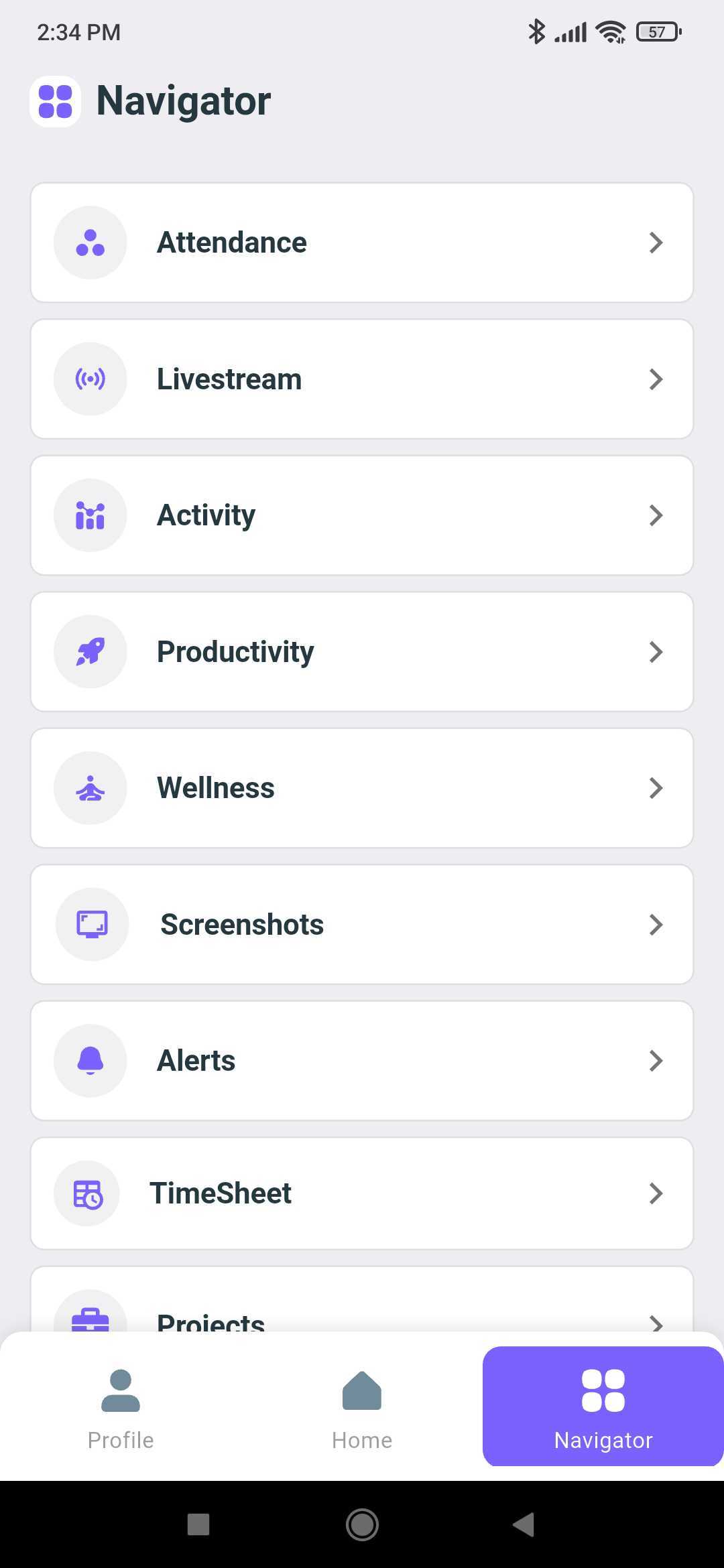
This tab allows user to view Attendance, Livestream, Activity, Productivity, Wellness, Screenshots, Alerts, TimeSheet, Projects.

{% hint style="info" %}
Viewing details of other employees requires "Admin" or "Super-Admin" role
{% endhint %}

#### Attendance:

<div><figure><img src="https://312671257-files.gitbook.io/~/files/v0/b/gitbook-x-prod.appspot.com/o/spaces%2FQ3PNLgMbrzO5nP1CwEjg%2Fuploads%2Fgit-blob-04019a4acbb9079bb9fe194ab145e7be3fe8ccf2%2Fmobile-app-attendance-daily-kpi-cards.jpg?alt=media" alt="Attendance screen with daily KPI cards for attendance rate, late arrivals, break time, and working time"><figcaption></figcaption></figure> <figure><img src="https://312671257-files.gitbook.io/~/files/v0/b/gitbook-x-prod.appspot.com/o/spaces%2FQ3PNLgMbrzO5nP1CwEjg%2Fuploads%2Fgit-blob-8315083baba8395f1b8165bb27b16f0fbf4fa65f%2Fmobile-app-attendance-present-absent-donut.jpg?alt=media" alt="Attendance donut chart of present versus absent employees with on-time and late arrival counts"><figcaption></figcaption></figure> <figure><img src="https://312671257-files.gitbook.io/~/files/v0/b/gitbook-x-prod.appspot.com/o/spaces%2FQ3PNLgMbrzO5nP1CwEjg%2Fuploads%2Fgit-blob-6e01554b3bc9638164e087702ffdeaaa41cfc619%2Fmobile-app-attendance-trends-last-7-days.jpg?alt=media" alt="Attendance Trends bar chart for the last 7 days with a View Details button"><figcaption></figcaption></figure> <figure><img src="https://312671257-files.gitbook.io/~/files/v0/b/gitbook-x-prod.appspot.com/o/spaces%2FQ3PNLgMbrzO5nP1CwEjg%2Fuploads%2Fgit-blob-8948e1ec0408a8a73583b914e775c72afd331741%2Fmobile-app-my-attendance-monthly-calendar.jpg?alt=media" alt="My Attendance calendar view marking present and absent days with total punch hours for the month"><figcaption></figcaption></figure> <figure><img src="https://312671257-files.gitbook.io/~/files/v0/b/gitbook-x-prod.appspot.com/o/spaces%2FQ3PNLgMbrzO5nP1CwEjg%2Fuploads%2Fgit-blob-d660ed048960f41445e81364c8f95aeb8f6566fd%2Fmobile-app-team-attendance-punch-list.jpg?alt=media" alt="Team Attendance list showing each employee&#x27;s punch-in time or absent status for the selected day"><figcaption></figcaption></figure> <figure><img src="https://312671257-files.gitbook.io/~/files/v0/b/gitbook-x-prod.appspot.com/o/spaces%2FQ3PNLgMbrzO5nP1CwEjg%2Fuploads%2Fgit-blob-1039d7b4d1a87015a6169a0ae8a26524b1fd1179%2Fmobile-app-team-attendance-filter-sheet.jpg?alt=media" alt="Attendance filter sheet to narrow the team list by all, present, or absent users and by team"><figcaption></figcaption></figure></div>

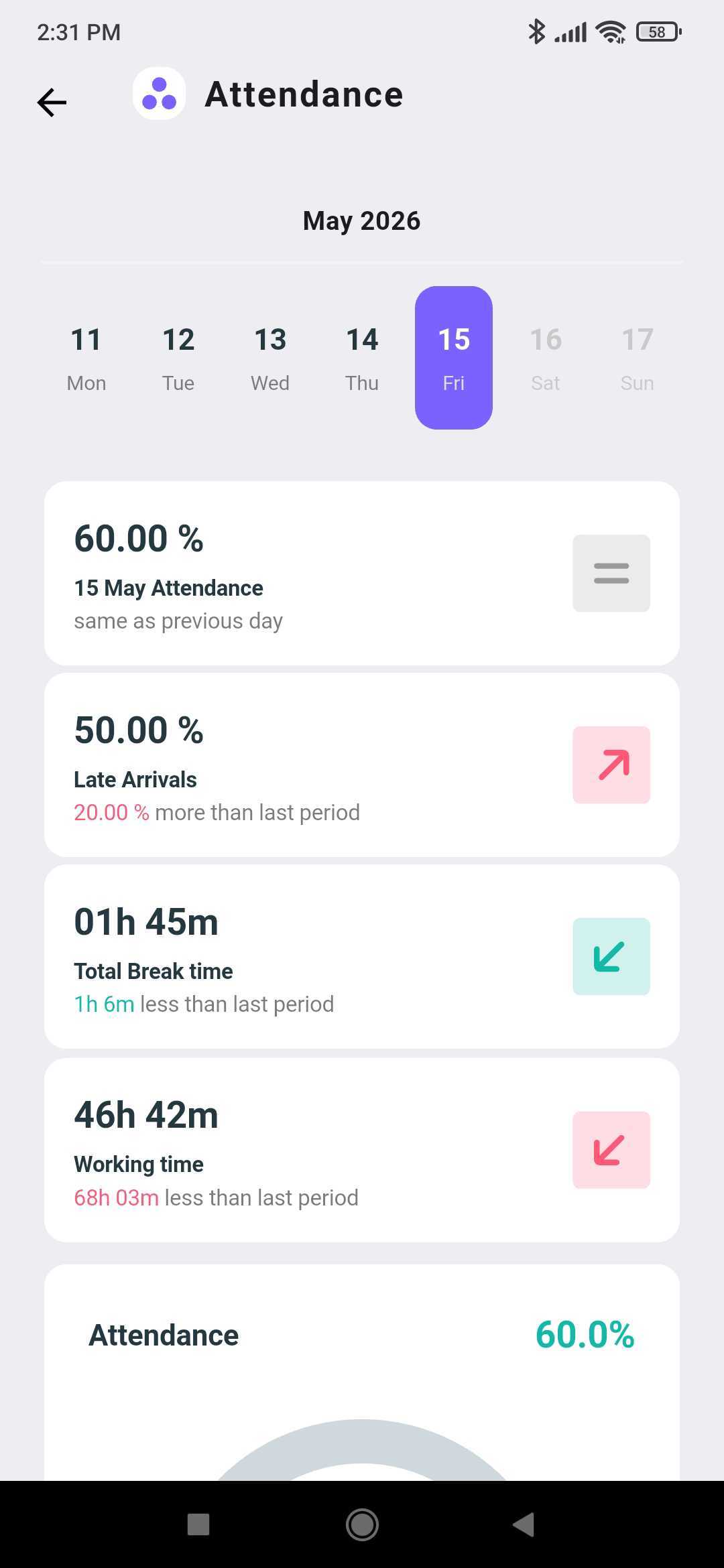
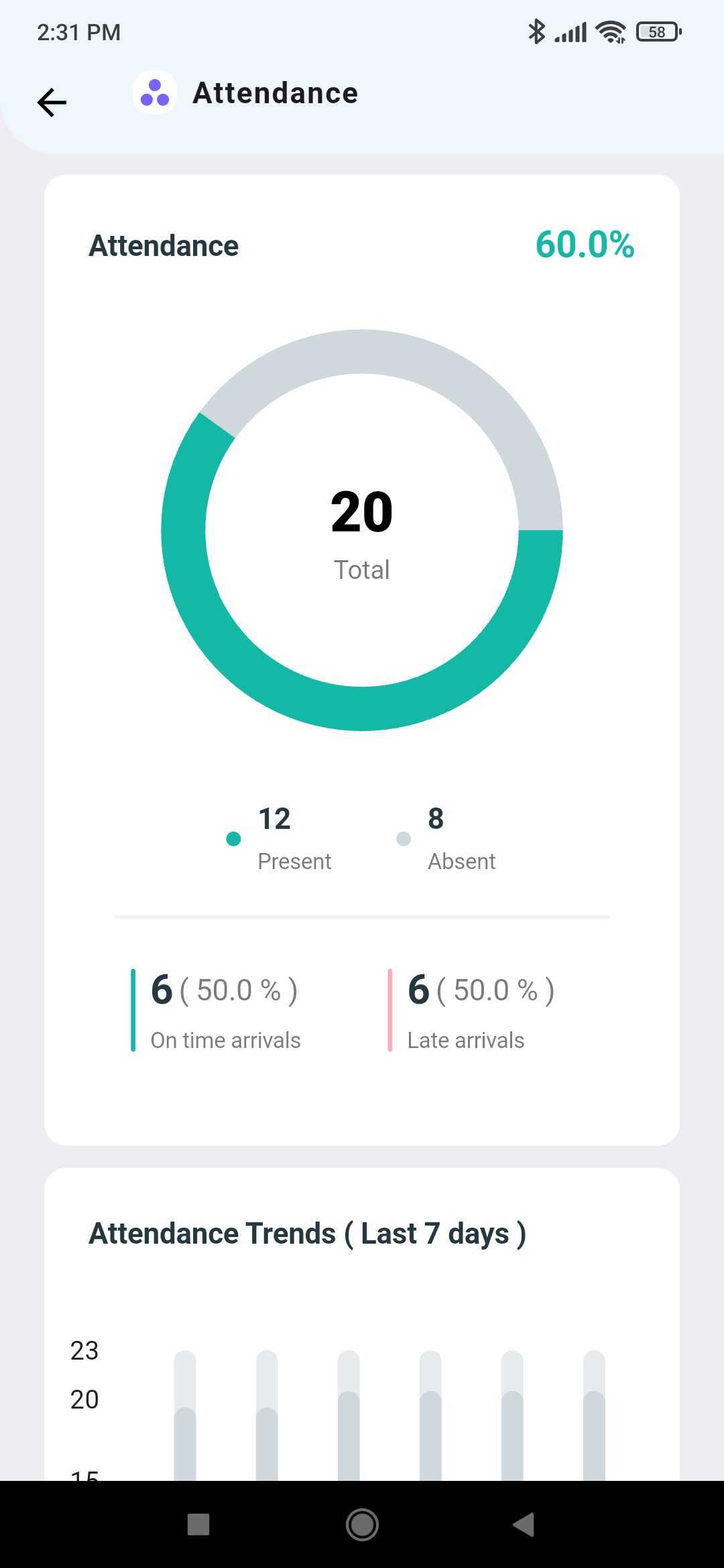
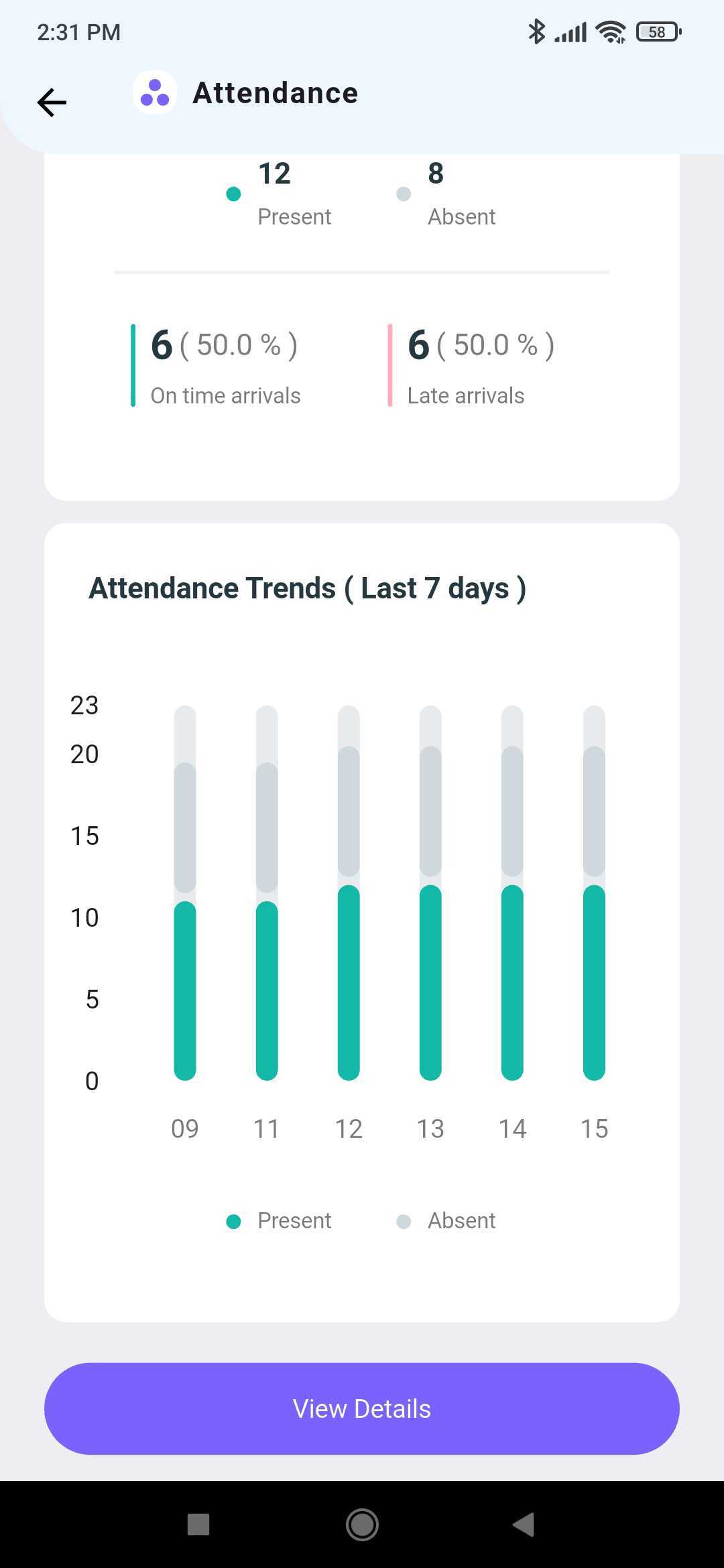
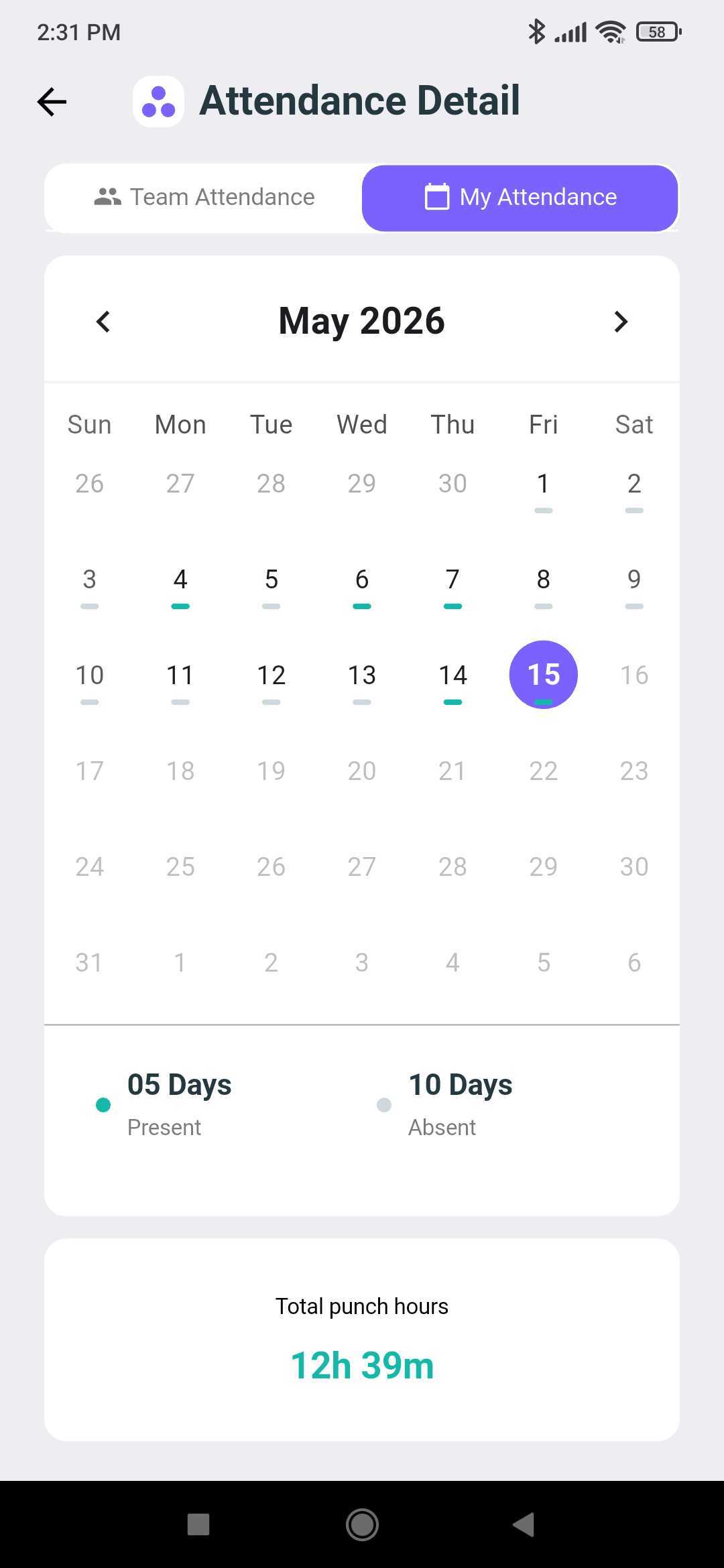
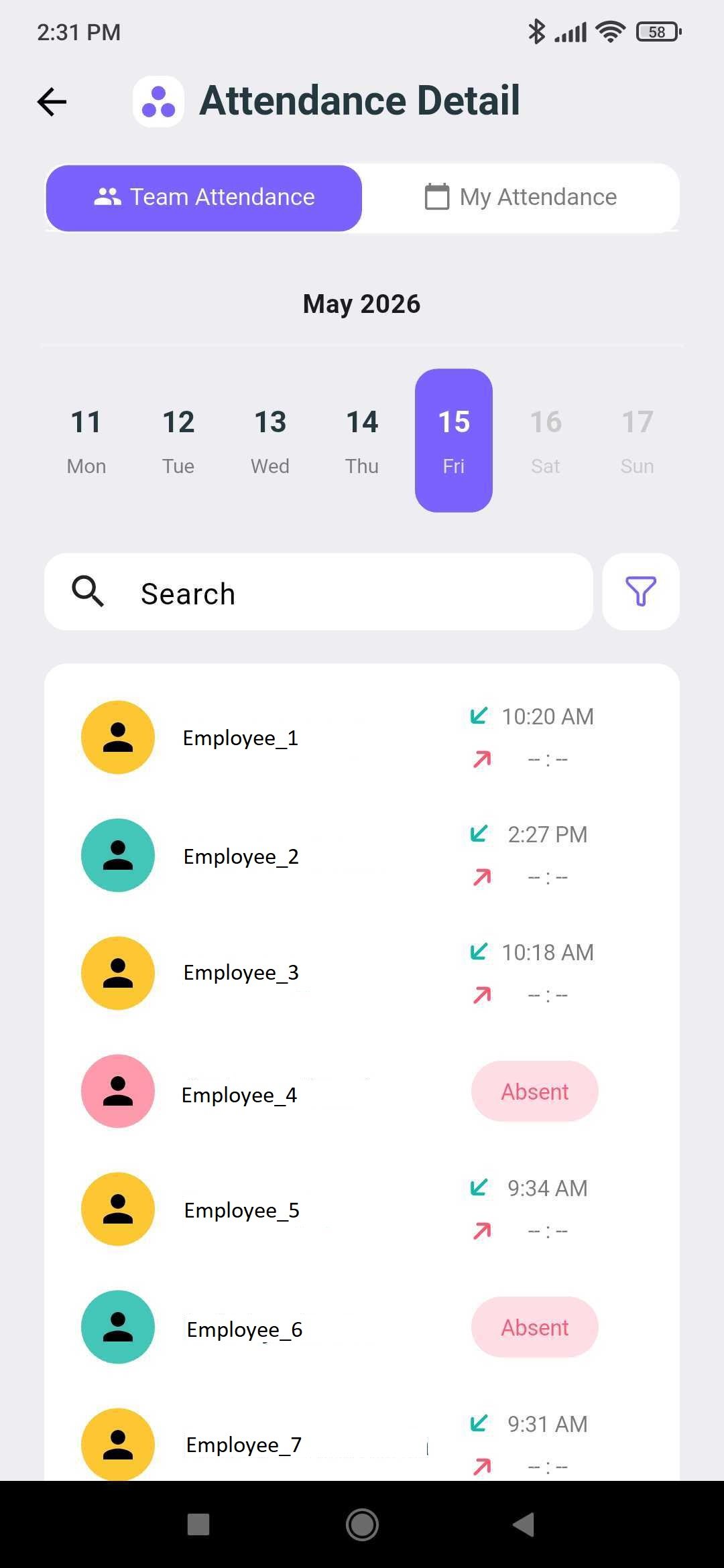
Admin access allows seeing the attendance of entire team, as well as overall attendance of team, late arrivals, working and break times, and 7 days of attendance trends. Downloading the report can be done via portal.

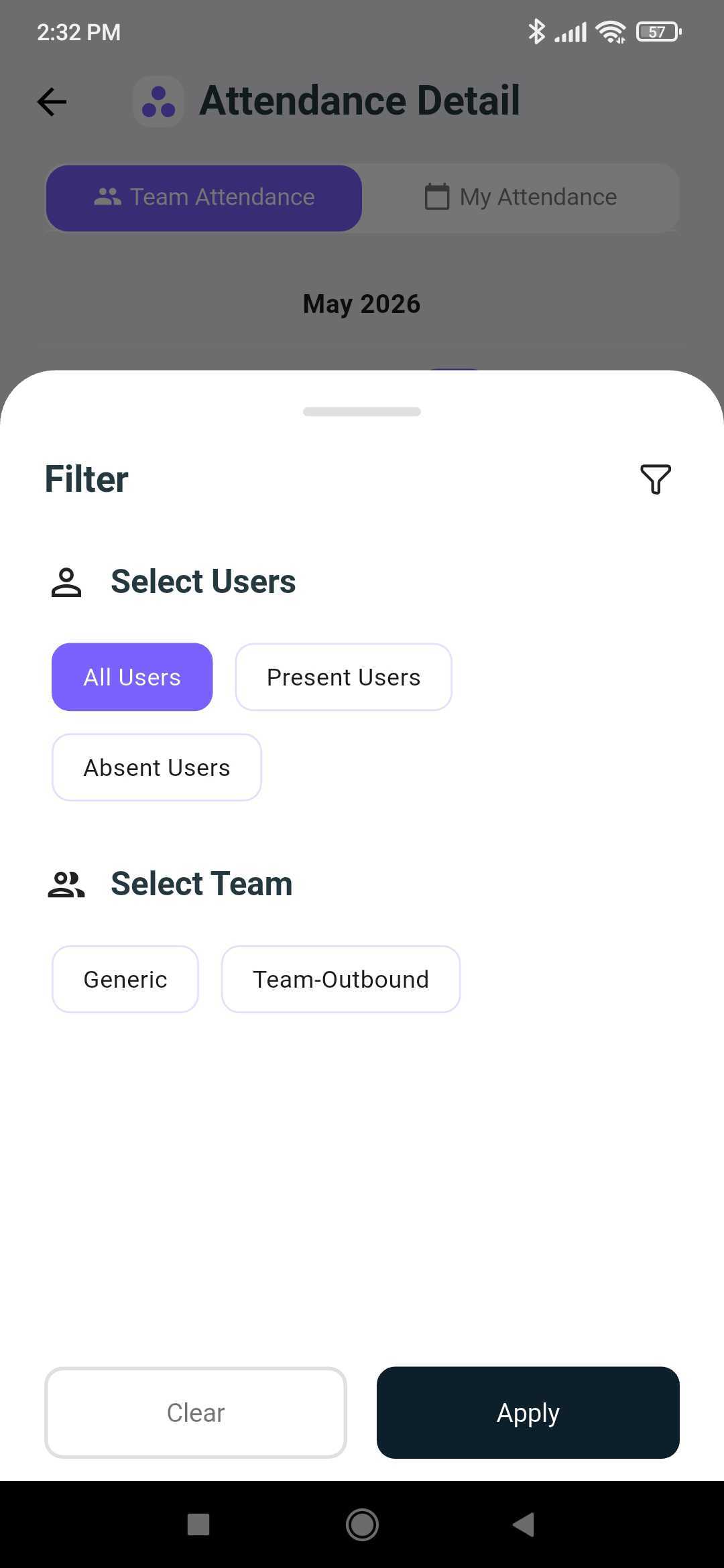
There's also tabs to check individual and team attendance as well as when in punched in and out. A filter allows Admin to quickly see which employees are present and absent, and sort by Team.

#### Activity:

<div><figure><img src="https://312671257-files.gitbook.io/~/files/v0/b/gitbook-x-prod.appspot.com/o/spaces%2FQ3PNLgMbrzO5nP1CwEjg%2Fuploads%2Fgit-blob-261413cc0cfc32d480b7d217950a40f527b1b5bf%2Fmobile-app-activity-detail-user-percentages.jpg?alt=media" alt="Activity Detail table listing each user&#x27;s activity percentage for the selected date"><figcaption></figcaption></figure> <figure><img src="https://312671257-files.gitbook.io/~/files/v0/b/gitbook-x-prod.appspot.com/o/spaces%2FQ3PNLgMbrzO5nP1CwEjg%2Fuploads%2Fgit-blob-45c922d7949f24d1b614d2f25341f23040b64279%2Fmobile-app-activity-overview-active-idle.jpg?alt=media" alt="Activity screen overview with active time, idle time, and total and average online time"><figcaption></figcaption></figure> <figure><img src="https://312671257-files.gitbook.io/~/files/v0/b/gitbook-x-prod.appspot.com/o/spaces%2FQ3PNLgMbrzO5nP1CwEjg%2Fuploads%2Fgit-blob-326159b3d802a3bf072f3cc6f99052e9cbe649af%2Fmobile-app-activity-trend-last-7-days.jpg?alt=media" alt="Activity Trend chart of active versus idle time over the last 7 days with total active time"><figcaption></figcaption></figure></div>

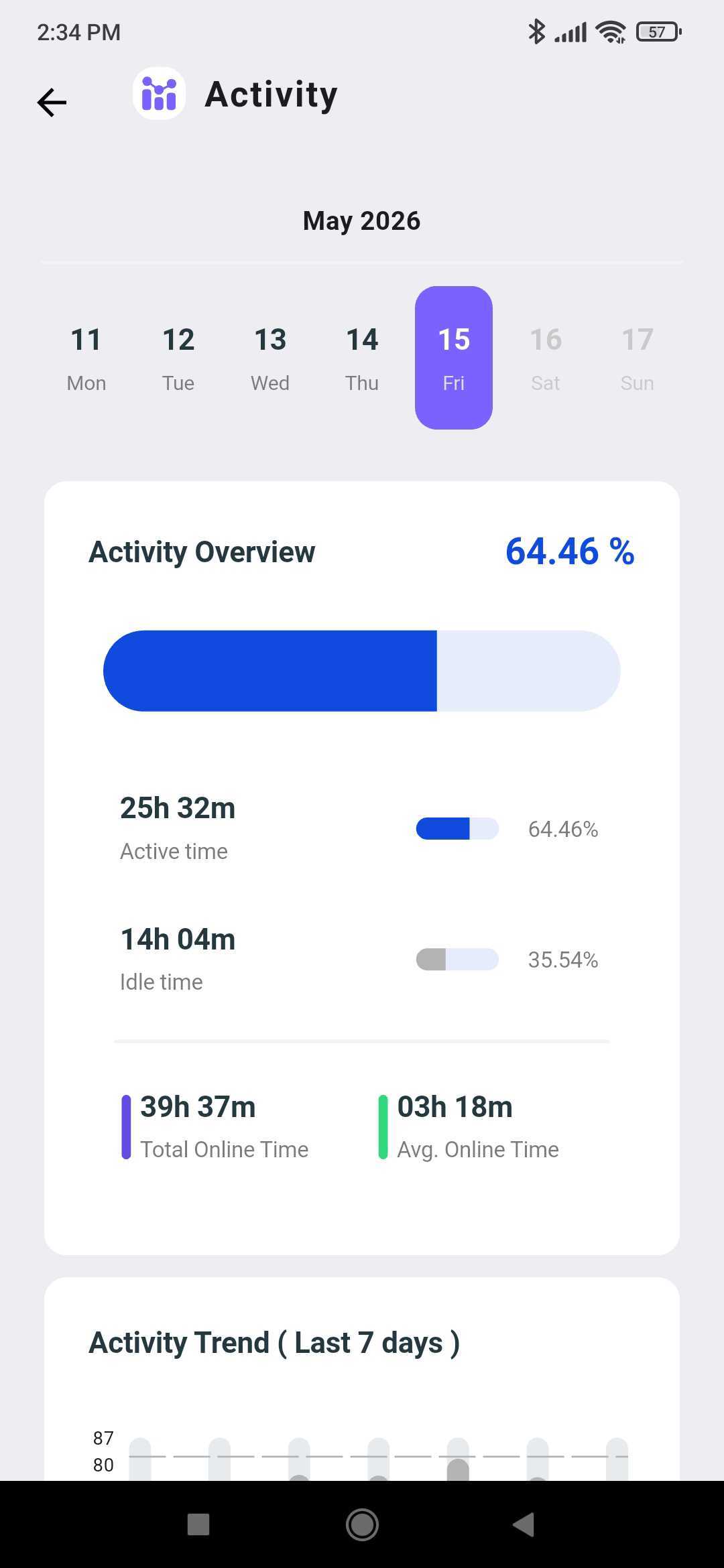
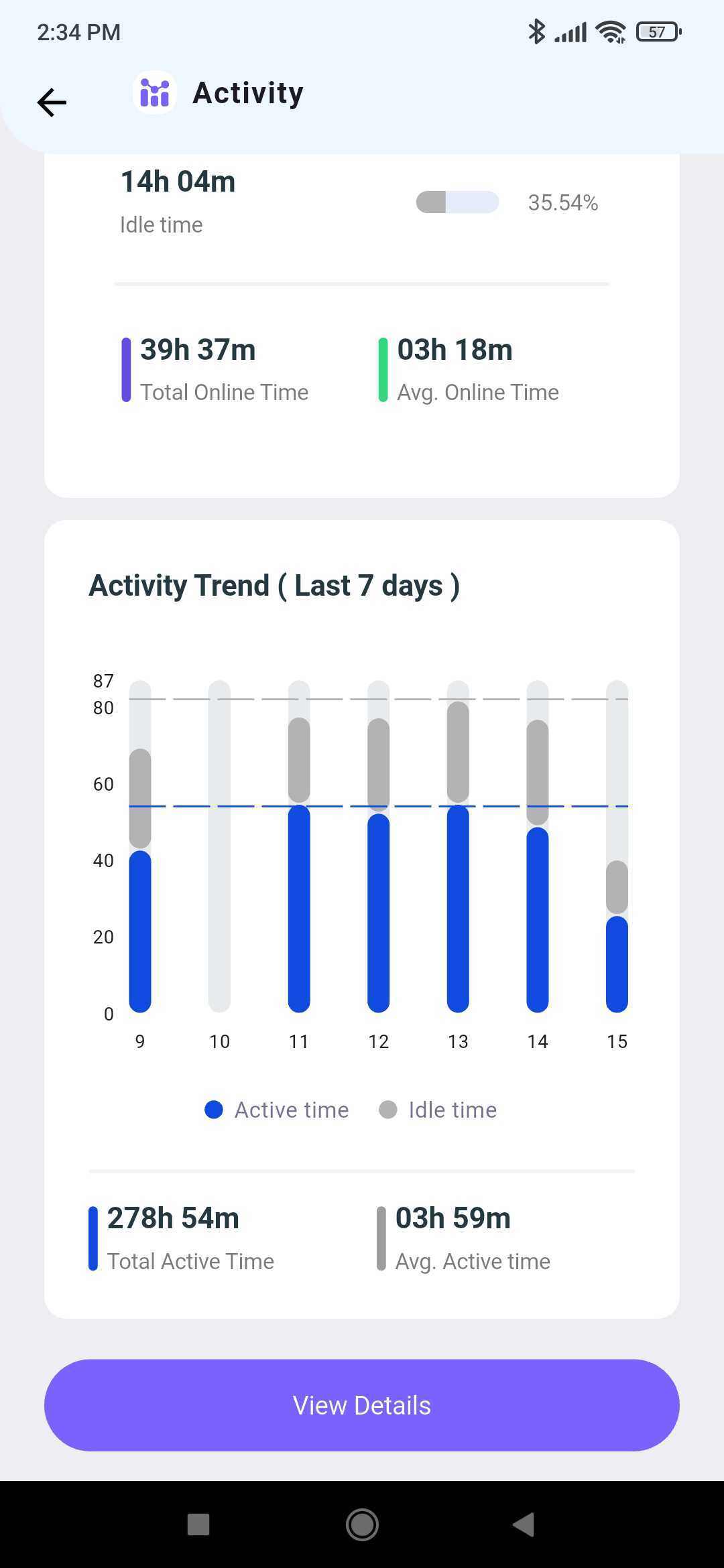
An overview of employee Activity and trends (7 days) can be seen.

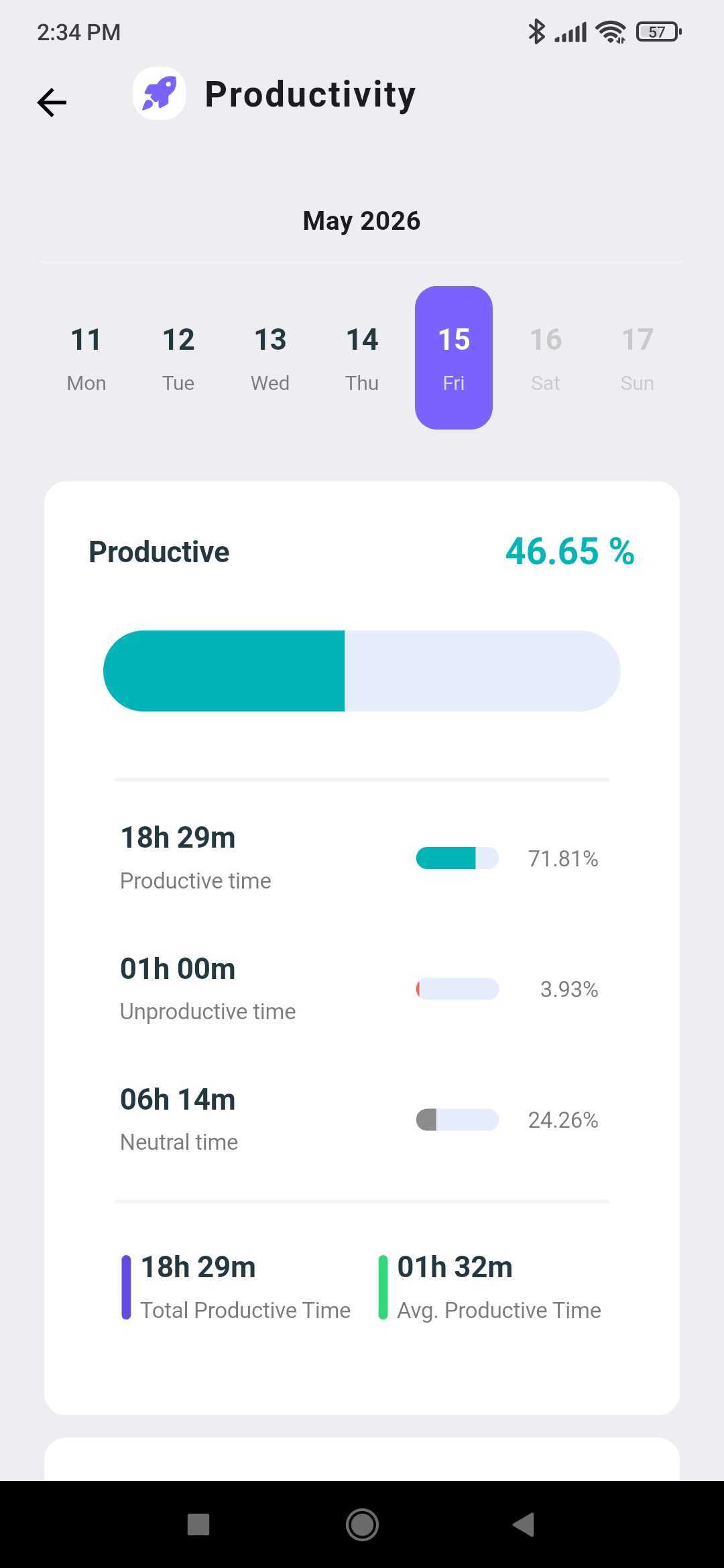
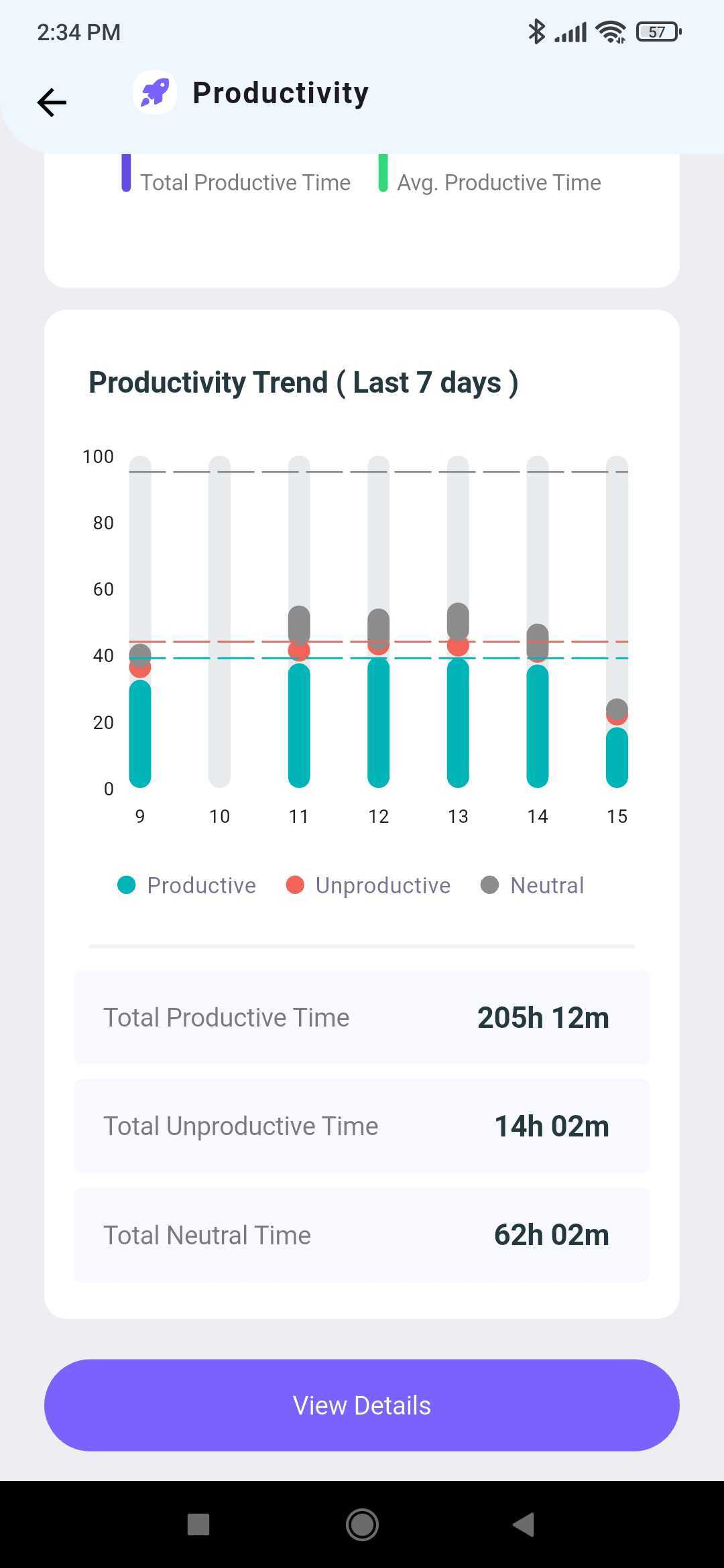
#### Productivity:

<div><figure><img src="https://312671257-files.gitbook.io/~/files/v0/b/gitbook-x-prod.appspot.com/o/spaces%2FQ3PNLgMbrzO5nP1CwEjg%2Fuploads%2Fgit-blob-1d2dd11ff2fef48605ca926d8ce2a61c4ea29bb5%2Fmobile-app-productivity-overview-breakdown.jpg?alt=media" alt="Productivity screen showing productive, unproductive, and neutral time with average productive time"><figcaption></figcaption></figure> <figure><img src="https://312671257-files.gitbook.io/~/files/v0/b/gitbook-x-prod.appspot.com/o/spaces%2FQ3PNLgMbrzO5nP1CwEjg%2Fuploads%2Fgit-blob-f7ed7d2a78b50ed54868be41ad6c6131eb665d28%2Fmobile-app-productivity-trend-last-7-days.jpg?alt=media" alt="Productivity Trend chart for the last 7 days with totals for productive, unproductive, and neutral time"><figcaption></figcaption></figure> <figure><img src="https://312671257-files.gitbook.io/~/files/v0/b/gitbook-x-prod.appspot.com/o/spaces%2FQ3PNLgMbrzO5nP1CwEjg%2Fuploads%2Fgit-blob-b65b5acf201e90587da3e279a9da34ec299041d2%2Fmobile-app-productivity-detail-user-percentages.jpg?alt=media" alt="Productivity Detail table listing each user&#x27;s productivity percentage for the selected date"><figcaption></figcaption></figure></div>

As with Attendance, Average team productive time, productivity trends (7 days) and details for each employee can be checked.

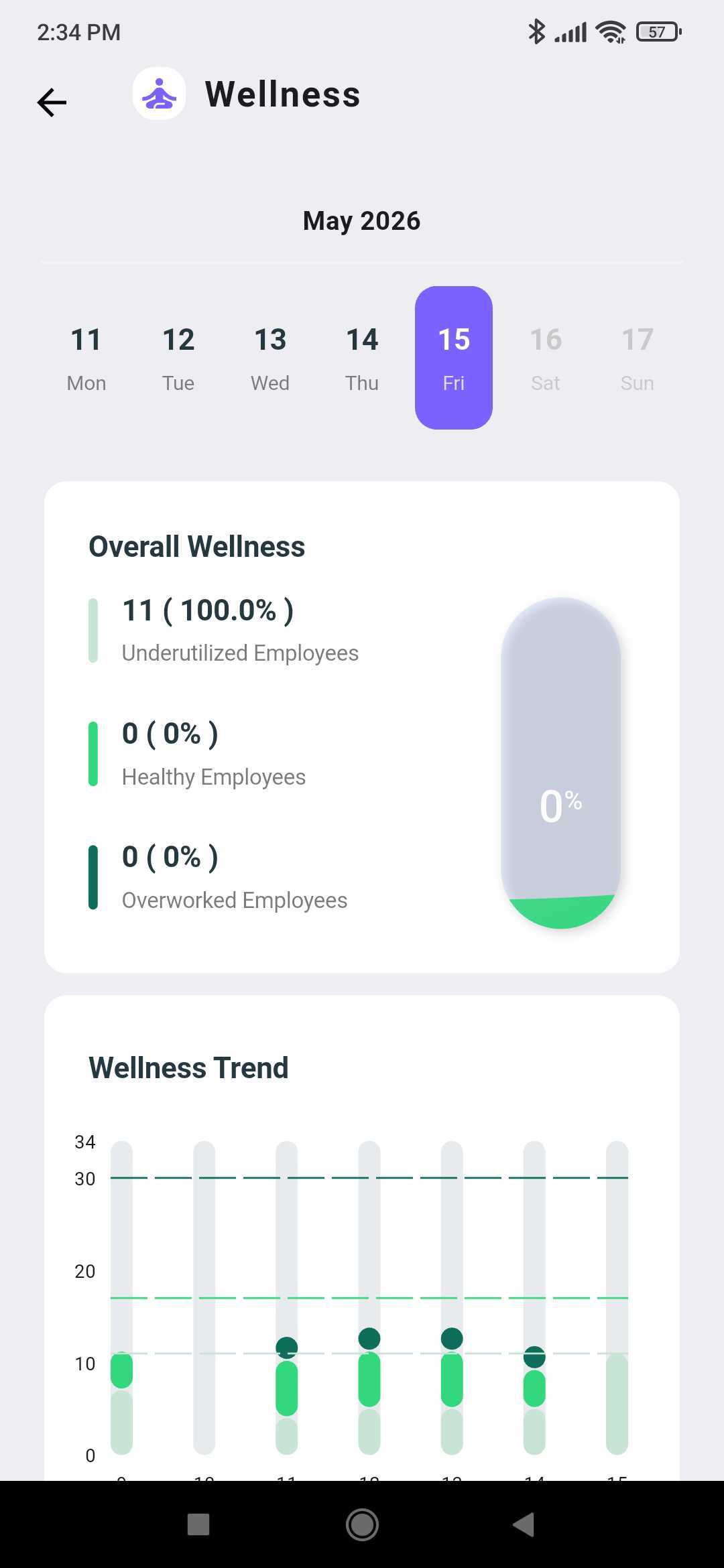
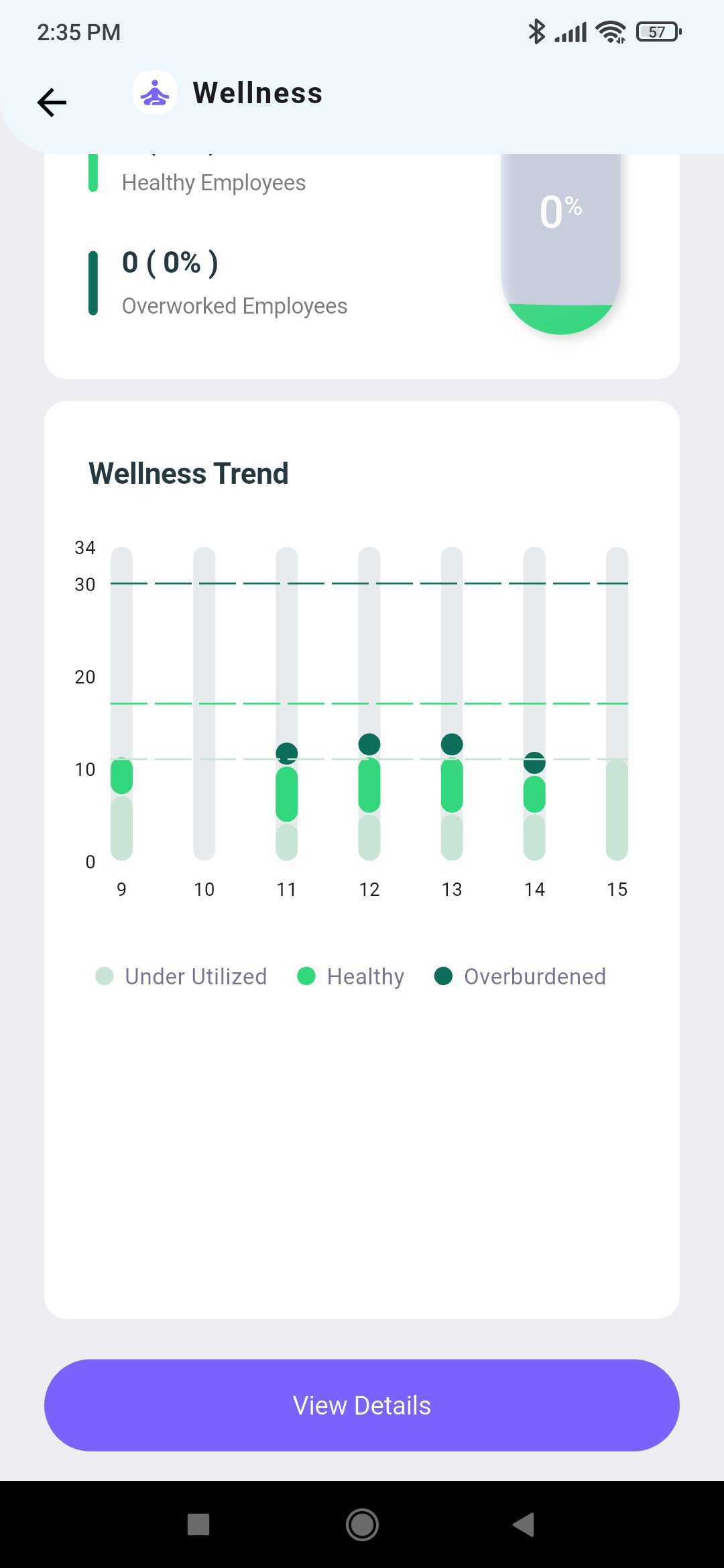
#### Wellness:

<div><figure><img src="https://312671257-files.gitbook.io/~/files/v0/b/gitbook-x-prod.appspot.com/o/spaces%2FQ3PNLgMbrzO5nP1CwEjg%2Fuploads%2Fgit-blob-53454e1bee1bb225ce92010d00c40f5e7665d055%2Fmobile-app-wellness-overview-employee-categories.jpg?alt=media" alt="Wellness screen with counts of underutilized, healthy, and overworked employees and a trend chart"><figcaption></figcaption></figure> <figure><img src="https://312671257-files.gitbook.io/~/files/v0/b/gitbook-x-prod.appspot.com/o/spaces%2FQ3PNLgMbrzO5nP1CwEjg%2Fuploads%2Fgit-blob-9cb501b27a8b06b80292e8dc47c72d96932a0ffa%2Fmobile-app-wellness-trend-chart.jpg?alt=media" alt="Wellness Trend chart plotting under-utilized, healthy, and overburdened employees by day"><figcaption></figcaption></figure> <figure><img src="https://312671257-files.gitbook.io/~/files/v0/b/gitbook-x-prod.appspot.com/o/spaces%2FQ3PNLgMbrzO5nP1CwEjg%2Fuploads%2Fgit-blob-773f1936f490751c46dbb3b700b044d08bd5b2d3%2Fmobile-app-wellness-detail-healthy-percentages.jpg?alt=media" alt="Wellness Detail table listing each user&#x27;s healthy percentage for the selected month"><figcaption></figcaption></figure></div>

Similar to Attendance and Productivity, overall team Wellness, and Wellness trends (7 days) and Individual Wellness % can be viewed.

#### Livestream:

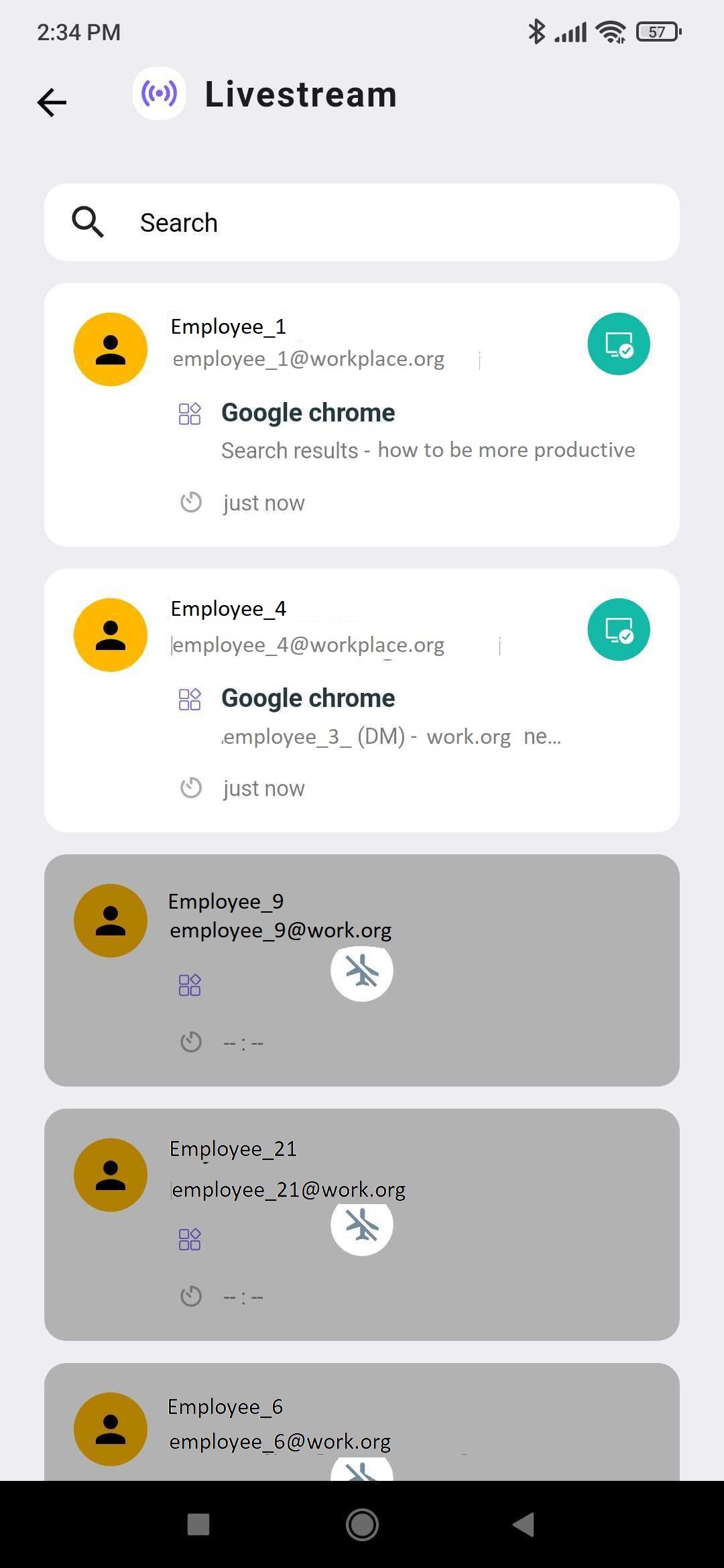
Admins can access the operations of what other employees are doing on their computers.

This feature **does not track mobile** phone usage.

<figure><img src="https://312671257-files.gitbook.io/~/files/v0/b/gitbook-x-prod.appspot.com/o/spaces%2FQ3PNLgMbrzO5nP1CwEjg%2Fuploads%2Fgit-blob-bec13581e47de9a2274a193b19fd93a4b386a23d%2Fmobile-app-livestream-active-app-monitoring.jpg?alt=media" alt="Livestream screen showing which application and window each online employee is currently using" width="375"><figcaption></figcaption></figure>

#### Screenshots

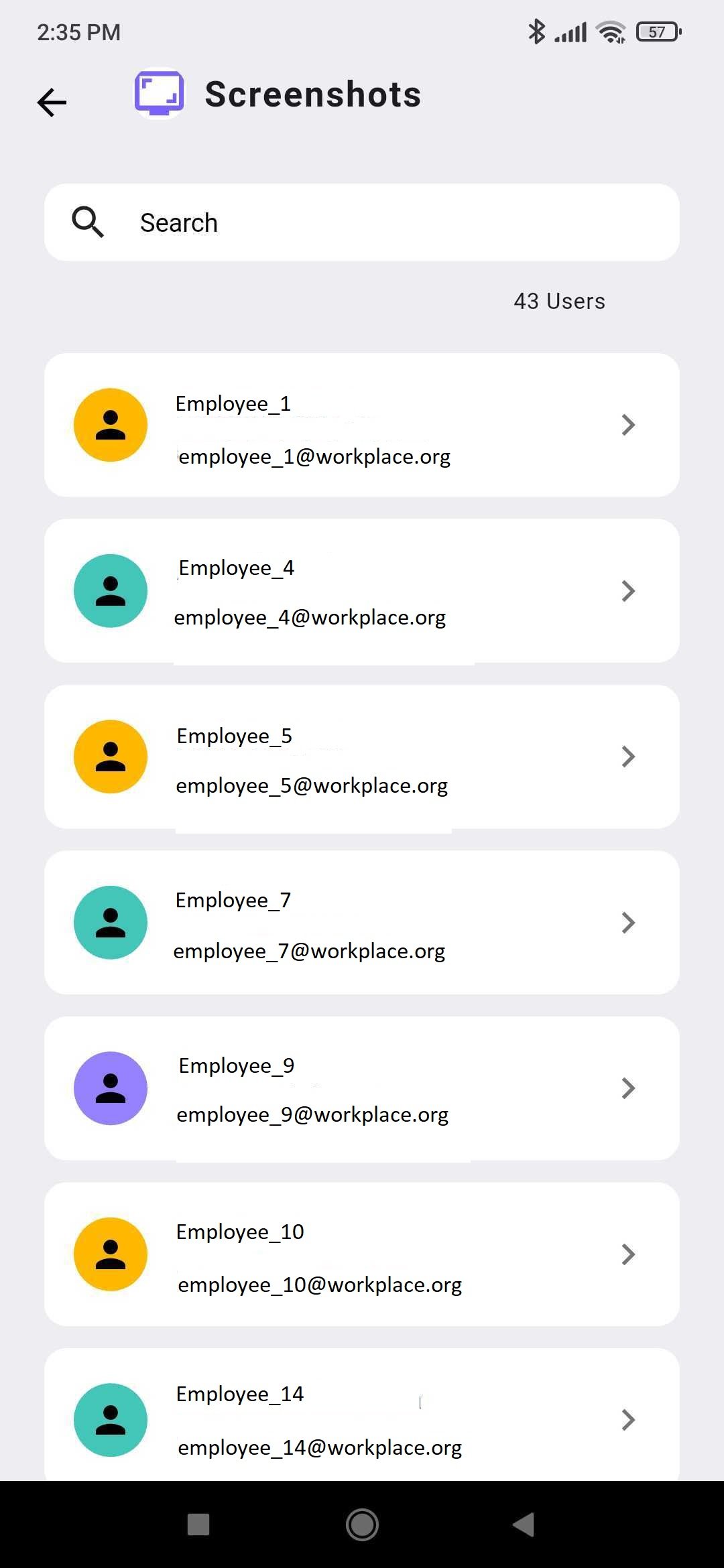
Admins can see what users are doing on their computers and track them via regular screenshots taken at 5 minute intervals. The screenshots also record apps visited in the duration between the screenshots.

<figure><img src="https://312671257-files.gitbook.io/~/files/v0/b/gitbook-x-prod.appspot.com/o/spaces%2FQ3PNLgMbrzO5nP1CwEjg%2Fuploads%2Fgit-blob-0cb35903fa38567e00519b131231152d8f361fb7%2Fmobile-app-screenshots-user-list.jpg?alt=media" alt="Screenshots screen listing tracked users to open their captured desktop screenshots" width="375"><figcaption></figcaption></figure>

{% hint style="info" %}
Screenshots deleted in the Settings menu of the Web Portal
{% endhint %}

#### Timesheet

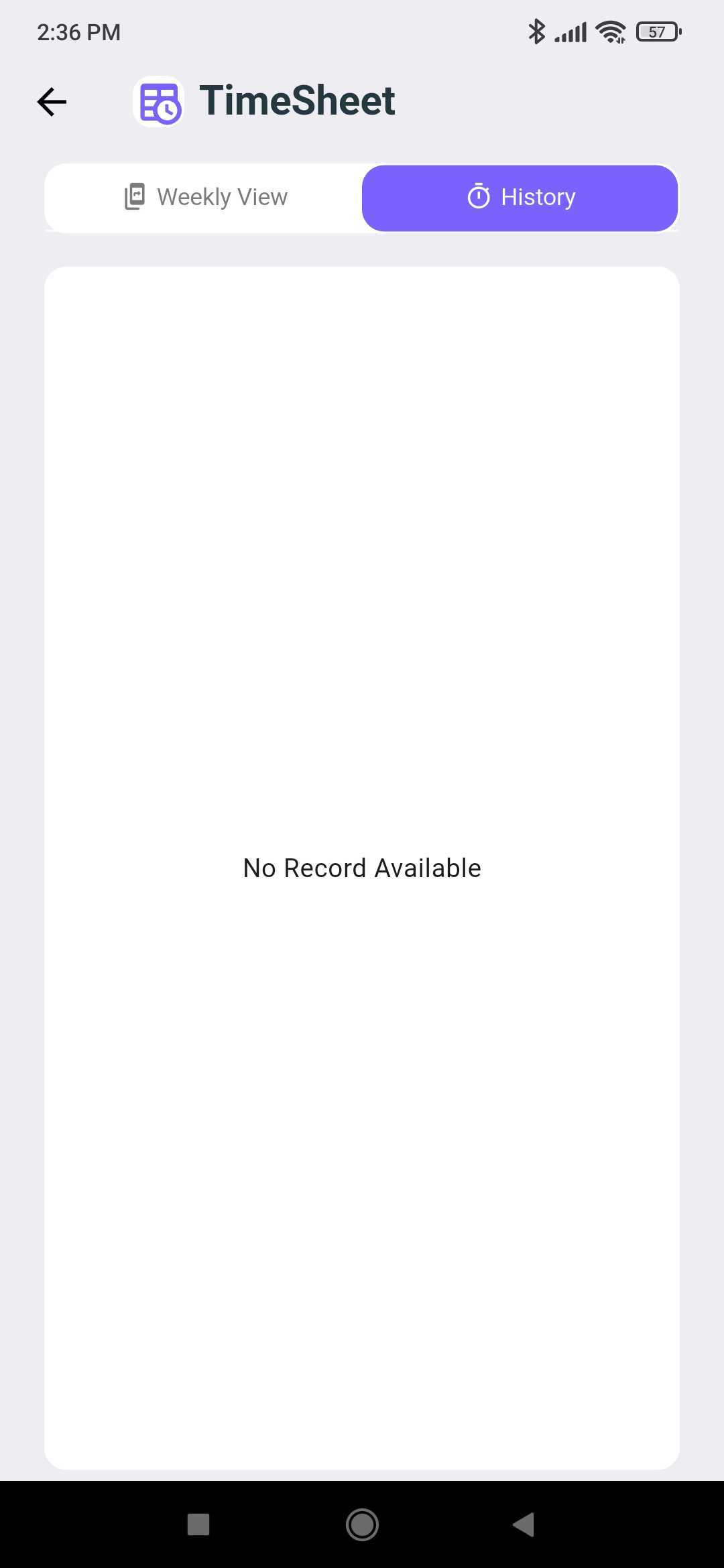
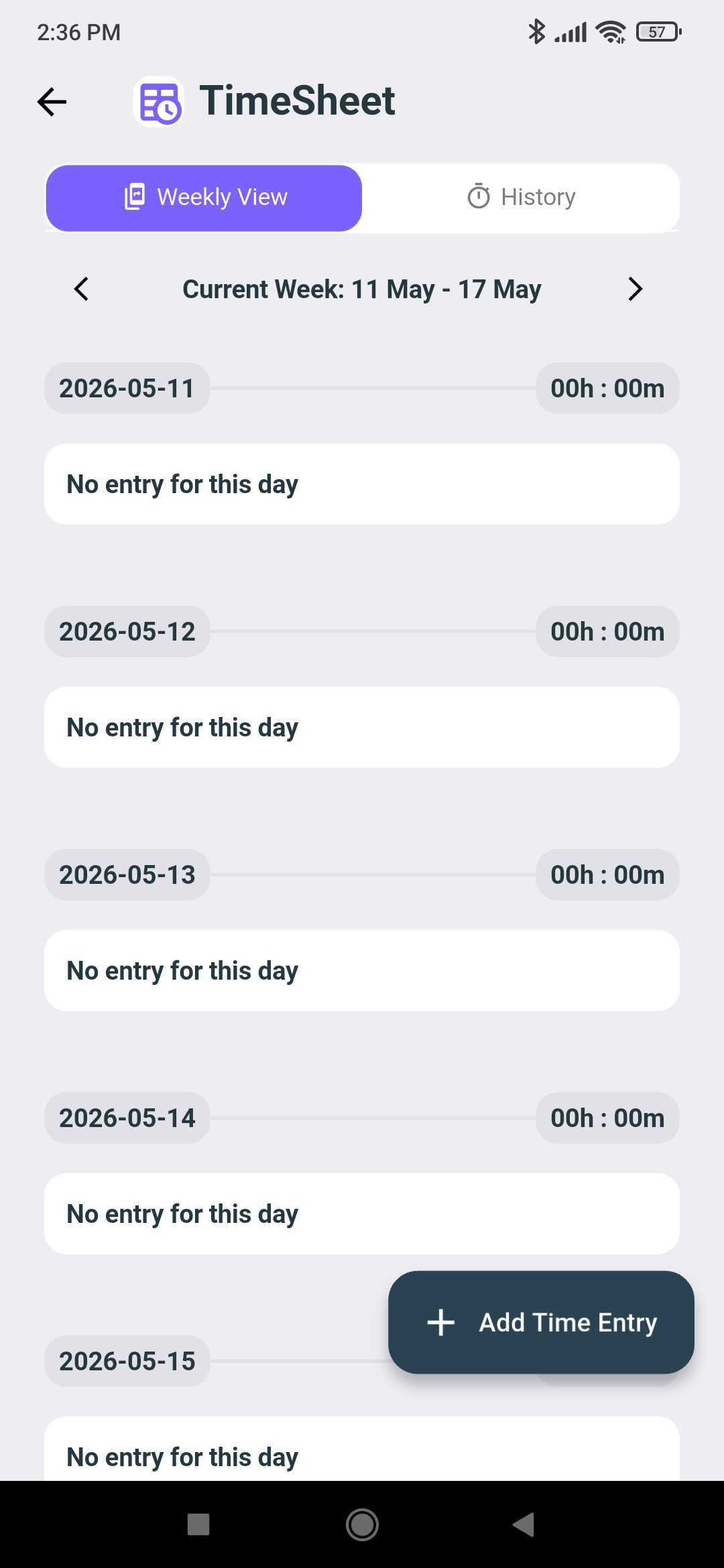
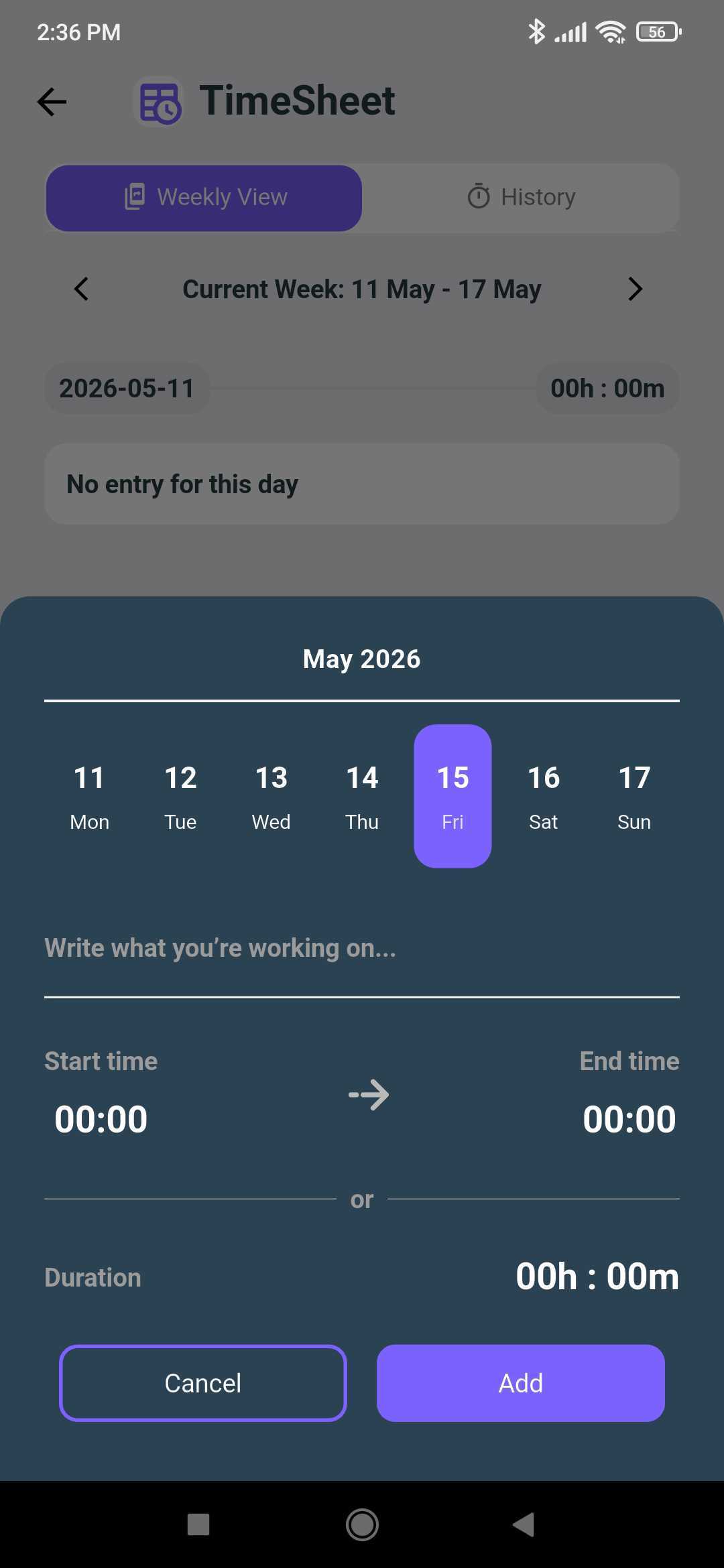
TimeSheet is a tool that allows tracking of time outside of punch in/ punch out. The mobile app features `Weekly View` and `History`. There is also an option to `+ Add Time Entry` to manually input hours worked. Select the date, add start time and end time in HH:MM format and click `Add`

<div><figure><img src="https://312671257-files.gitbook.io/~/files/v0/b/gitbook-x-prod.appspot.com/o/spaces%2FQ3PNLgMbrzO5nP1CwEjg%2Fuploads%2Fgit-blob-21521275cab9f9371bd5dc51b9a5b0bbdeb41d3f%2Fmobile-app-timesheet-history-empty-state.jpg?alt=media" alt="TimeSheet History tab with no records available yet"><figcaption></figcaption></figure> <figure><img src="https://312671257-files.gitbook.io/~/files/v0/b/gitbook-x-prod.appspot.com/o/spaces%2FQ3PNLgMbrzO5nP1CwEjg%2Fuploads%2Fgit-blob-843fe787ed50accea463e467721d50fc1a5a756b%2Fmobile-app-timesheet-weekly-view-add-entry.jpg?alt=media" alt="TimeSheet Weekly View listing each day of the current week with the Add Time Entry button"><figcaption></figcaption></figure> <figure><img src="https://312671257-files.gitbook.io/~/files/v0/b/gitbook-x-prod.appspot.com/o/spaces%2FQ3PNLgMbrzO5nP1CwEjg%2Fuploads%2Fgit-blob-8fe55567a54aea2b202508c2a4120e5507c1f76e%2Fmobile-app-timesheet-add-time-entry-form.jpg?alt=media" alt="Add Time Entry sheet to pick a date, describe the work, and set start and end time or duration"><figcaption></figcaption></figure></div>

#### Projects:

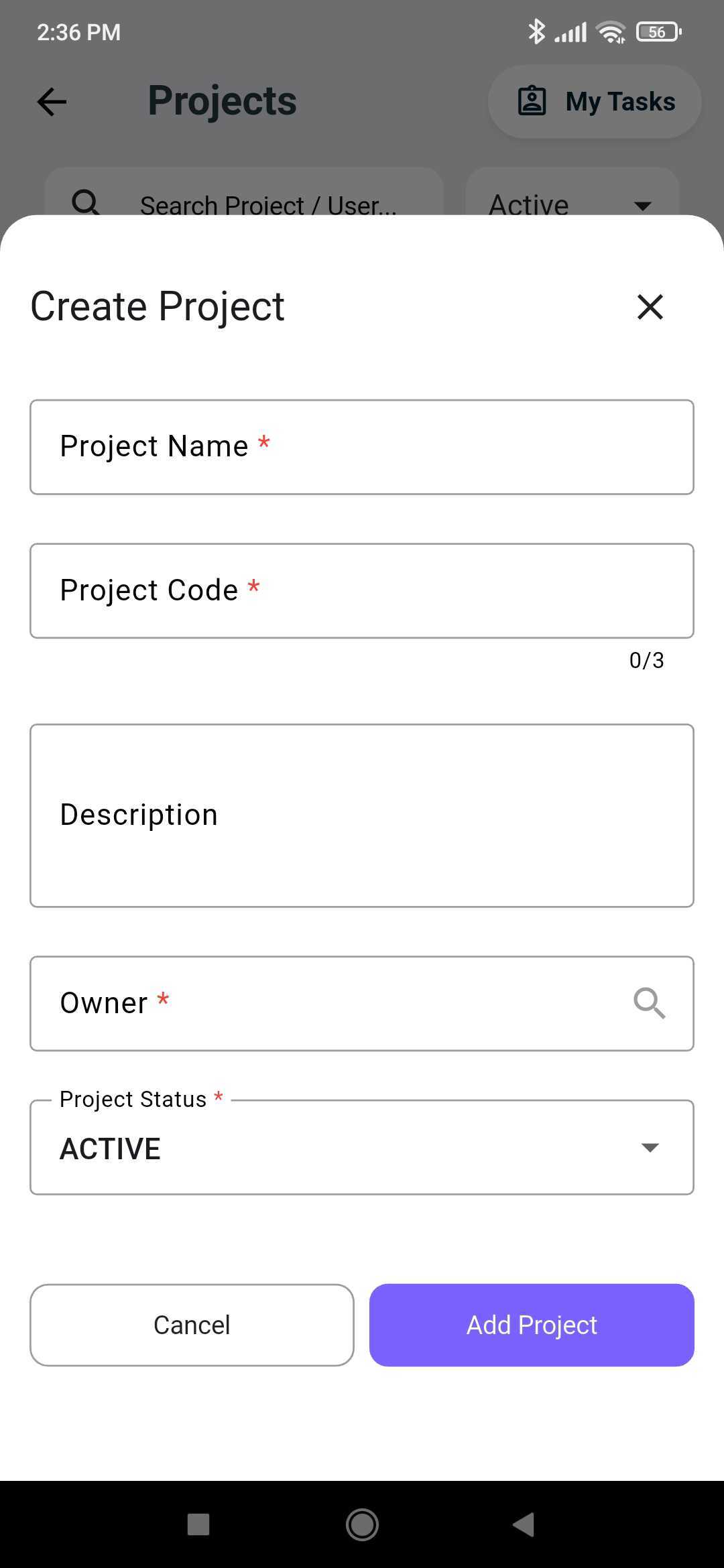
Projects can be viewed or added. To add a project, click on `+ New` and fill in the relevant details as shown in the column that appears and click `Add Project`

<div><figure><img src="https://312671257-files.gitbook.io/~/files/v0/b/gitbook-x-prod.appspot.com/o/spaces%2FQ3PNLgMbrzO5nP1CwEjg%2Fuploads%2Fgit-blob-e3e5f7e9a181a53e652339962eb0dcd8249f8a5e%2Fmobile-app-projects-list-active-filter.jpg?alt=media" alt="Projects screen listing active projects with search, status filter, My Tasks, and a New button"><figcaption></figcaption></figure> <figure><img src="https://312671257-files.gitbook.io/~/files/v0/b/gitbook-x-prod.appspot.com/o/spaces%2FQ3PNLgMbrzO5nP1CwEjg%2Fuploads%2Fgit-blob-2390ff4dbf254a81cb8c19c23a0e58b37fb91d65%2Fmobile-app-create-project-form.jpg?alt=media" alt="Create Project form with project name, code, description, owner, and status fields"><figcaption></figcaption></figure></div>


---

# Agent Instructions
This documentation is published with GitBook. GitBook is the documentation platform designed so that both humans and AI agents can read, navigate, and reason over technical content effectively. Learn more at gitbook.com.

## Querying This Documentation
If you need additional information that is not directly available in this page, you can query the documentation dynamically by asking a question.

Perform an HTTP GET request on the current page URL with the `ask` query parameter, and the optional `goal` query parameter:

```
GET https://docs.we360.ai/reference/work-and-time-management/user-interfaces/mobile-app.md?ask=<question>&goal=<endgoal>
```

`ask` is the immediate question: it should be specific, self-contained, and written in natural language.
`goal` is optional and describes the broader end goal you are ultimately trying to accomplish on behalf of the user. GitBook uses it to tailor the answer towards what is most useful for that goal.

The response will contain a direct answer to the question and relevant excerpts and sources from the documentation.

Use this mechanism when the answer is not explicitly present in the current page, you need clarification or additional context, or you want to retrieve related documentation sections.