# Real-Time

The **Real Time** section of the Productivity Suite is dedicated to managers who need immediate, live visibility into active workstreams or field operations.

## Livestream

The Livestream feature provides synchronous, real-time viewing of user desktops currently tracked by the We360.ai Desktop Agent. This feature utilizes WebSocket connections to ensure that as an employee switches applications or stops typing, the portal updates instantly.

* **View Modes**: The Livestream interface can be toggled between two primary visualization modes:
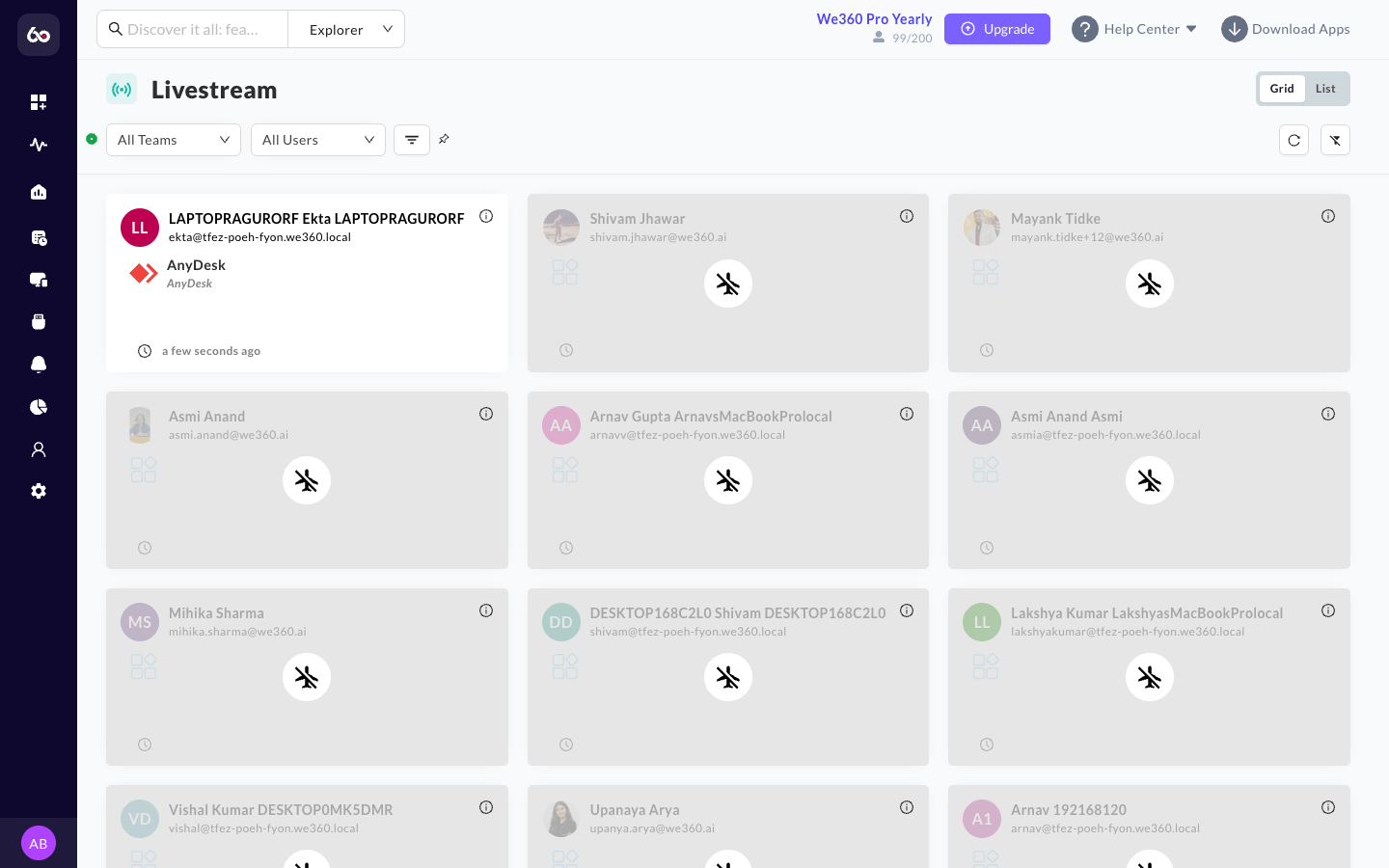
  * **Grid View**: A high-density mosaic displaying a card for each user in the filtered team and user selections. This is ideal for quickly scanning an entire active department. Each card for an **online** user displays: the user's name, email address, current application or URL in use (including the page or tab title), and the time elapsed since the current status started (e.g., "10 minutes ago"). If the user is on break, the card displays "On Break" along with the elapsed break time. **Offline** users are displayed as greyed-out cards with an airplane mode icon.

<figure><img src="/files/psx0Thazit51dZ8WvmLR" alt="Livestream Grid View"><figcaption><p>Livestream Grid View showing a mosaic of active employee screens.</p></figcaption></figure>

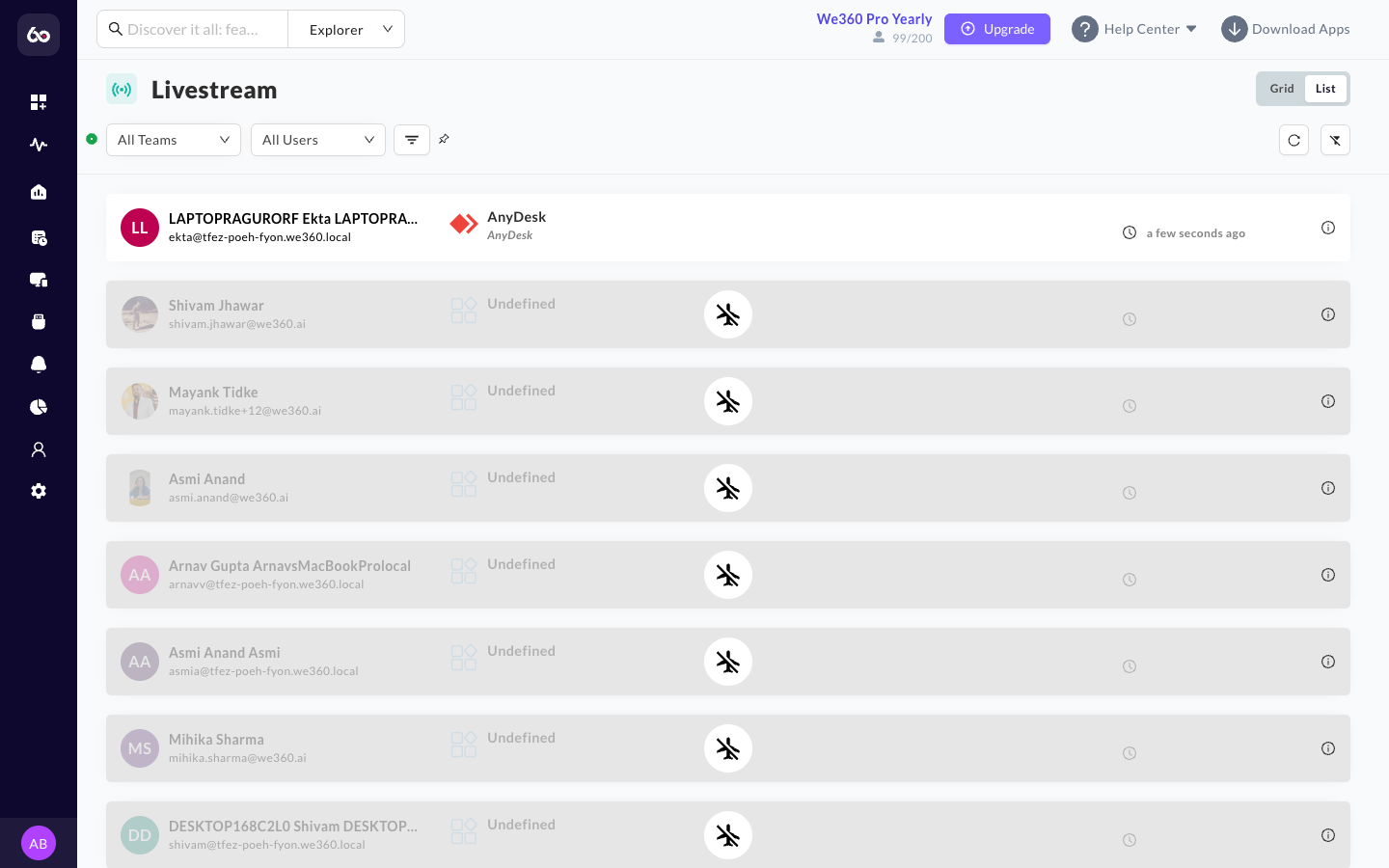
* **List View**: A traditional row-based format where each row corresponds to a filtered user. For online users, each row displays: the user's name, email address, current application or URL with page/tab details, and time elapsed since the current status started. Offline users are shown with an airplane mode icon and the row is greyed out.

<figure><img src="/files/hfnuCVYvtrgDG6ReZkFD" alt="Livestream List View"><figcaption><p>Livestream List View displaying employee status in a row-based format.</p></figcaption></figure>

{% tabs %}
{% tab title="🟢 Green" %}
All systems and connections are functioning as expected.
{% endtab %}

{% tab title="🟡 Yellow" %}
Potential issue detected — contact the support team.
{% endtab %}

{% tab title="🔴 Red" %}
Connection problem — contact the support team immediately.
{% endtab %}
{% endtabs %}

* **On-Demand Screenshots**: You can view on-demand screenshots for any active user by clicking on their card (Grid View) or row (List View). In Grid View, hovering on a card displays a screenshot icon indicating that a live screenshot can be fetched. This provides real-time insight into each user's work and is a useful tool for evaluating work patterns and ensuring compliance.
* **Activity Indicators**: Instantly see if a user is actively typing, moving their mouse, or if the system has flagged them as "Offline" due to a lack of recent ping data (configurable inactivity threshold).
* **Application Logging**: Below the user's name, the Livestream interface displays the precise name of the application or URL they are *currently* focused on in real time.
* **Instant Warnings**: Depending on compliance settings, if an employee attempts to disable their tracking or if Livestreaming is explicitly disabled for them via privacy settings, an inline notification will alert the manager.

## Field Tracking

Field Tracking is an essential tool for organizations with distributed, remote, or traveling employees utilizing the **We360.ai mobile app** (e.g., Sales Representatives, Field Executives, Service Technicians, Delivery Drivers). The Field module is designed exclusively for **mobile app users only** -- employees use the We360.ai mobile app to punch in and out from the field.

Common use cases include:

* **Geofencing** for office locations
* **Last mile delivery** tracking
* **At-home service delivery** monitoring

{% hint style="warning" %}
The Field module is currently in beta and is available only for mobile devices.
{% endhint %}

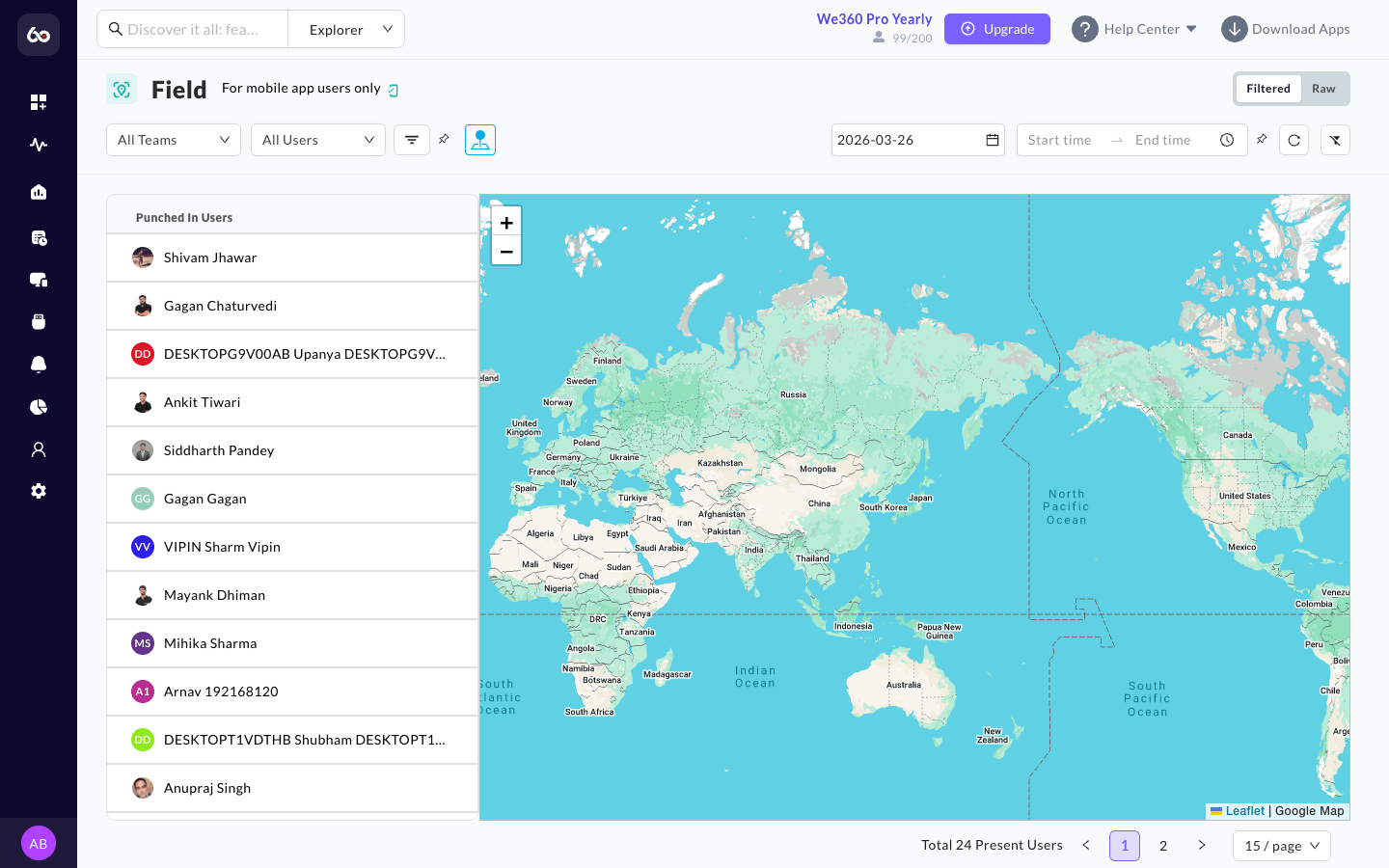
* **Employee List & Map**: Admins can see a list of employees with filters. For the first or selected employee, the map displays their **punch-in location** and **current location** (if currently punched in) or their **punch-out location**.
* **Live Locator Map**: A dynamic map (powered by Leaflet/Google Maps) displaying the most recently polled GPS location of active field employees. The map offers two viewing modes:
  * **Filtered View**: Shows only punched-in users with their current locations plotted on the map.
  * **Raw View**: Shows unfiltered location data for all tracked field employees.
* **Route Replay / Travel Paths**: Historical tracking allowing a manager to visualize the travel path a field employee took throughout their shift. Admins can view detailed **travel paths and visit logs** with timestamps for specific checkpoints.
* **Geofence Status**: Information regarding which employees are currently located within defined permissible areas (Geofences) versus those who have drifted out of bounds.
* **Location Tracking Requirement**: GPS/location tracking must remain **enabled on employee devices** for field tracking to function correctly. If location services are disabled, the employee's position cannot be updated.

<figure><img src="/files/89zafUfIIkQbMTarTXmV" alt="Field Tracking map view"><figcaption><p>Field Tracking showing live GPS locations of field employees on a map.</p></figcaption></figure>


---

# Agent Instructions: Querying This Documentation

If you need additional information that is not directly available in this page, you can query the documentation dynamically by asking a question.

Perform an HTTP GET request on the current page URL with the `ask` query parameter:

```
GET https://docs.we360.ai/reference/work-and-time-management/user-interfaces/portal/productivity-suite/real-time.md?ask=<question>
```

The question should be specific, self-contained, and written in natural language.
The response will contain a direct answer to the question and relevant excerpts and sources from the documentation.

Use this mechanism when the answer is not explicitly present in the current page, you need clarification or additional context, or you want to retrieve related documentation sections.