> For the complete documentation index, see [llms.txt](https://docs.we360.ai/llms.txt). Markdown versions of documentation pages are available by appending `.md` to page URLs; this page is available as [Markdown](https://docs.we360.ai/reference/work-and-time-management/user-interfaces/portal/project-suite/timesheet.md).
# Timesheet
We360.ai timesheet — assign employee hours to projects, review budgets, and track billable time automatically.
The **Timesheet** bridges the gap between raw tracked time (from the Productivity Suite) and billable output. While the Desktop Agent automatically records *how long* an employee was at the computer, the Timesheet dictates *what* that time was spent achieving.
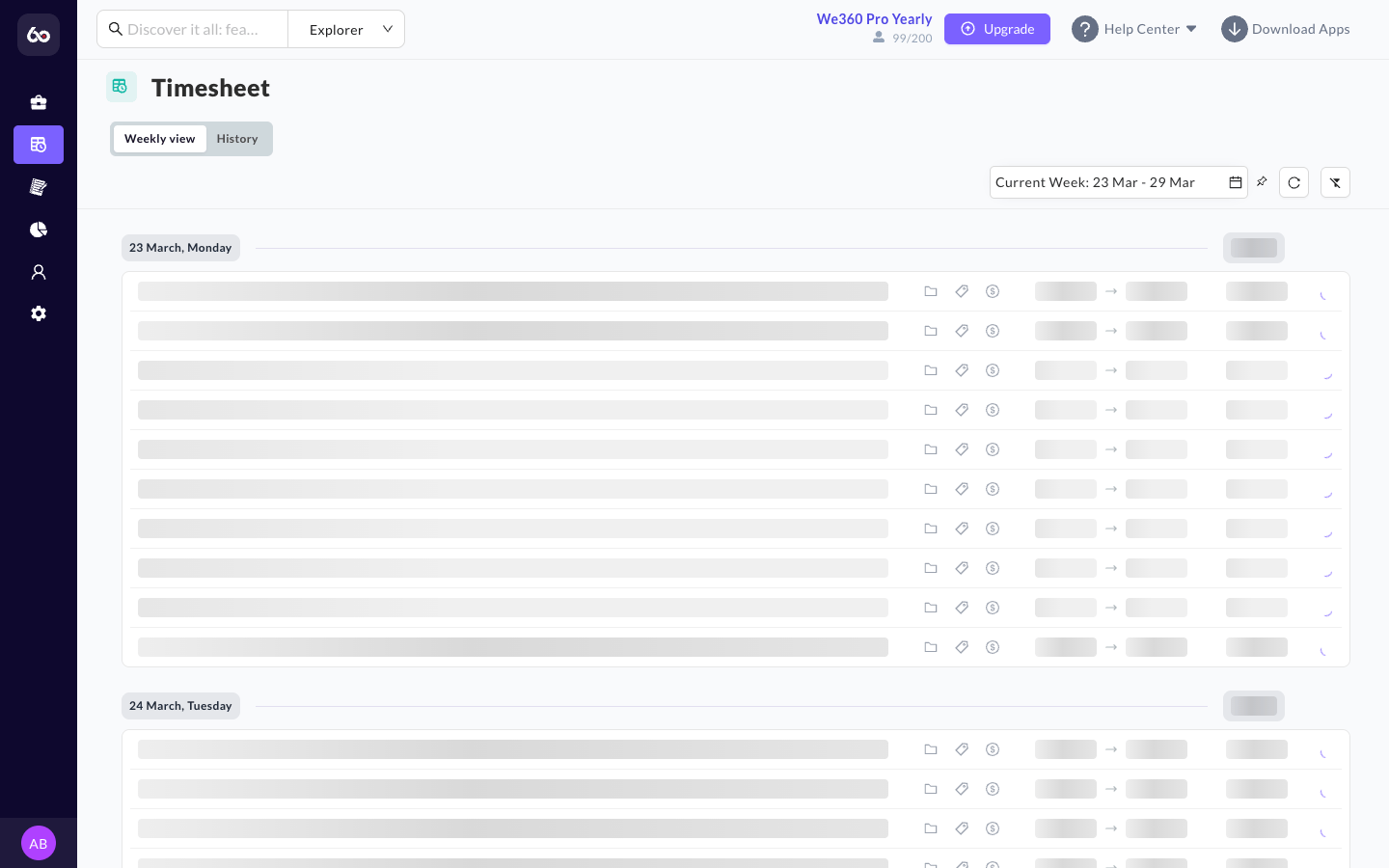
Timesheet view for logging and allocating hours to projects
## Functionality
Logging & Allocation
* **Logging Hours**: Employees or managers can assign slices of their tracked time directly to specific Projects and sub-tasks defined in the Projects dashboard.
* **Automated vs. Manual Entry**: Depending on settings, timesheets can either be automatically generated based on the active window titles captured by the tracking agent, or they can require manual input and assignment by the employee at the end of their shift.
## Standard User Experience
Standard users see two main sections on their Timesheet dashboard:
Weekly View
The Weekly View is where users log their daily work hours. The current week is selected by default, but users can navigate to previous or upcoming weeks.
When filling out a timesheet entry, users provide:
* **What was worked on** -- a short summary describing the task (e.g., "Client meeting," "SEO optimization").
* **Time details** -- three flexible methods:
* Enter Start Time and End Time; the system calculates Duration automatically.
* Enter Start Time and Duration; the system fills the End Time automatically.
* Enter only Duration if exact timings are unknown.
* Multiple entries can be logged in a single day for different tasks.
* **Planned Timesheets**: Users can pre-fill their next week's timesheet in advance if upcoming tasks are already known.
History
The History section lets users track previously submitted timesheets and check their approval status (Pending, Approved, or Rejected).
## Submit and Edit Rules
* Users can freely edit timesheet entries **before** submission.
* Once a timesheet is submitted, it is locked and **cannot be edited** by the user.
* To make corrections after submission, a Manager or Admin must **Reopen** the timesheet so the user can revise and resubmit.
## Manager & Admin View
Managers and Admins have two tabs: **My Timesheet** (for their own hours) and **Team's Timesheet** (for reviewing direct reports).
Team's Timesheet
The Team's Timesheet tab is divided into three sections:
* **Pending** -- Submitted timesheets awaiting approval.
* **Approved** -- Finalized timesheets kept for records.
* **Rejected** -- Timesheets sent back with a reason for rejection.
**Available actions** (via the three-dot menu on each row):
* **Approve** -- Accept the timesheet.
* **Reject** -- Send it back with feedback.
* **Reopen** -- Allow the user to edit and resubmit.
**Filters** help locate specific data quickly: filter by User to view a specific employee's timesheets, or by Date Range to access previous weeks.
Review & Auditing
* **Timesheet Approval Workflow**: Timesheet entries can be configured to require managerial approval before being finalized for payroll integrations or client invoicing. The full lifecycle — Submit → Pending → Approved/Rejected → Reopen — ensures accountability and accuracy at every stage.
* **Manual Time Workflow**: We360.ai uniquely offers a **Manual Time** workflow where employees can retroactively log untracked hours (e.g., in-person meetings, phone calls on unmonitored devices) via a formal request that requires managerial approval before being added to the timesheet. This ensures no legitimate work time goes unrecorded — a capability not found in competing platforms.
* **Status Tracking**: Managers can quickly filter and view which timesheets are "Pending," "Approved," or "Rejected" (with attached notes detailing why a rejection occurred).
* **Historical Auditing**: Easily look back at past weeks to understand the true time-cost of a delivered project versus the original estimates, enabling more accurate forecasting for future work.
---
# Agent Instructions
This documentation is published with GitBook. GitBook is the documentation platform designed so that both humans and AI agents can read, navigate, and reason over technical content effectively. Learn more at gitbook.com.
## Querying This Documentation
If you need additional information that is not directly available in this page, you can query the documentation dynamically by asking a question.
Perform an HTTP GET request on the current page URL with the `ask` query parameter, and the optional `goal` query parameter:
```
GET https://docs.we360.ai/reference/work-and-time-management/user-interfaces/portal/project-suite/timesheet.md?ask=&goal=
```
`ask` is the immediate question: it should be specific, self-contained, and written in natural language.
`goal` is optional and describes the broader end goal you are ultimately trying to accomplish on behalf of the user. GitBook uses it to tailor the answer towards what is most useful for that goal.
The response will contain a direct answer to the question and relevant excerpts and sources from the documentation.
Use this mechanism when the answer is not explicitly present in the current page, you need clarification or additional context, or you want to retrieve related documentation sections.