> For the complete documentation index, see [llms.txt](https://docs.we360.ai/llms.txt). Markdown versions of documentation pages are available by appending `.md` to page URLs; this page is available as [Markdown](https://docs.we360.ai/reference/work-and-time-management/user-interfaces/portal/universal-tools/alerts.md).
# Alerts
We360.ai alerts — historical logs of automated employee monitoring notifications and triggered system warnings.
The **Alerts** module acts as the historical ledger for the automated notification system configured in the Settings Center. While the *rules* for alerts are defined elsewhere, this page is where managers review what was actually triggered.
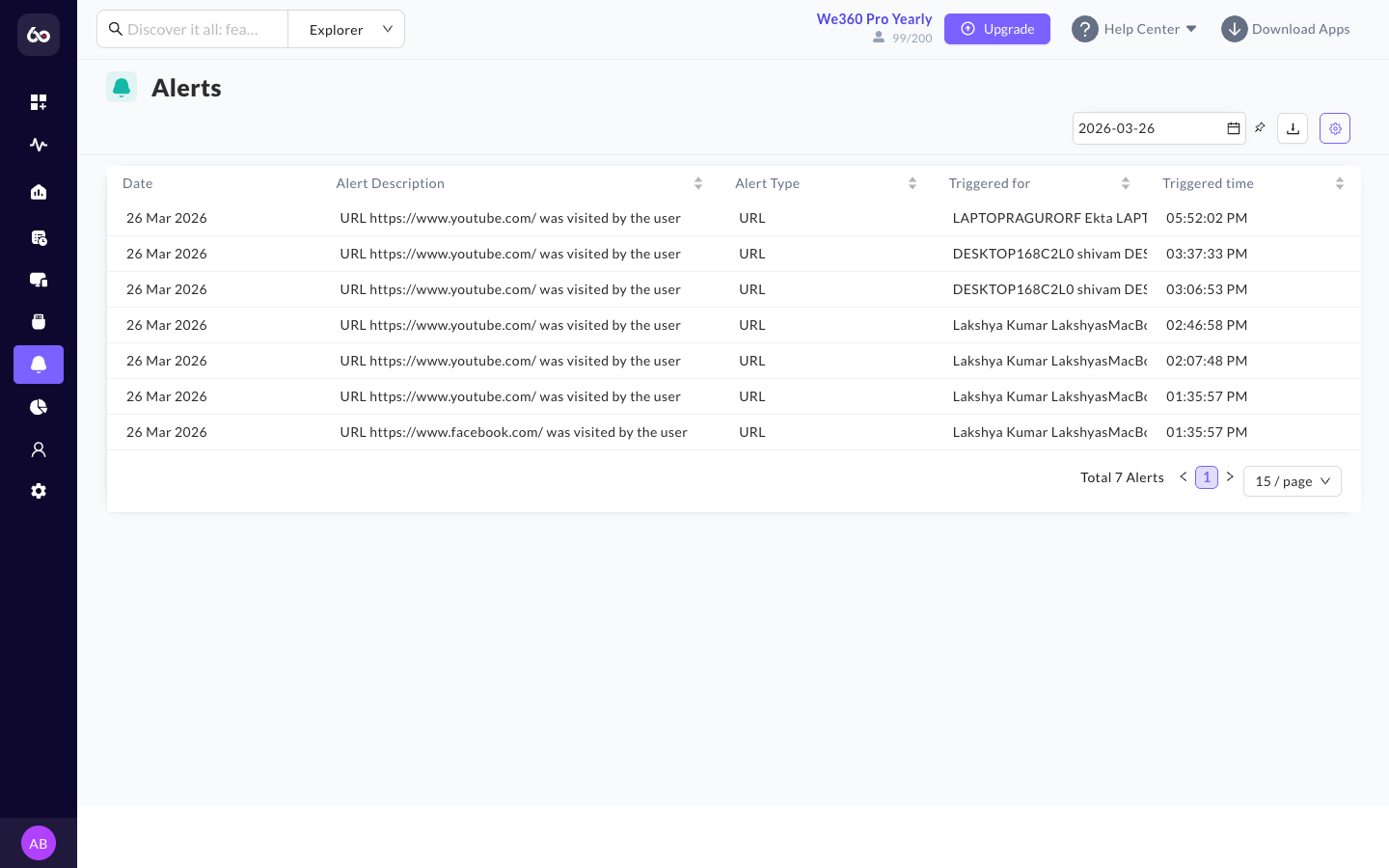
Alerts history log with triggered events and timestamps
* **Paginated History**: Displays a continuous feed of all triggered events (e.g., an employee exceeding a threshold for "Unproductive App Usage," or attempting to access a blacklisted URL). The dashboard includes a total alert count and pagination for easy navigation.
* **Alert Details**: Each alert record in the dashboard includes: **Date** of the event, **Alert Description** explaining the trigger reason, **Alert Type** (e.g., Absence, URL, Application, Overtime Break), **Triggered For** (the specific user), and **Triggered Time** when the alert occurred.
* **Timestamps**: Every alert is logged with a precise timestamp, providing an auditable trail for HR or IT security interventions.
* **Email Notifications**: Whenever an alert is triggered, an automated email notification is sent to relevant stakeholders. The email includes the alert reason, user details (name, email, date of event), and additional context such as the last seen time. This ensures managers are informed even when they are not logged into the platform.
* **Exportable**: The entire alert history can be filtered by date and exported as a CSV for external compliance reviews or internal disciplinary tracking.
## Alert Configuration
{% hint style="info" %}
Alert rules are **not** configured on this page. To create or modify alert triggers, navigate to **Settings > Emails & Alerts > Alert Rules**. The Alerts module here is the read-only log of everything those rules have fired.
{% endhint %}
Configurable alert triggers include scenarios such as:
* **Absence Alerts** -- triggered when one or more users are absent during their assigned shift.
* **Inactivity Alerts** -- triggered when a user remains inactive beyond a defined time threshold (e.g., 60 minutes of inactivity).
* **Overtime Break Alerts** -- triggered when an employee exceeds the defined break time limit.
* **URL Alerts** -- triggered when specific URLs (e.g., social or entertainment sites) are accessed.
* **Application Alerts** -- triggered when restricted or monitored applications are opened.
* **Late Arrival** -- employee punches in beyond the allowed grace period.
* **Unproductive App Usage** -- time spent on unproductive applications exceeds a set limit.
Each triggered alert record in the log typically includes: **Employee Name**, **Alert Type**, **Trigger Condition**, **Date & Time**, and the **Team** the employee belongs to.
---
# Agent Instructions
This documentation is published with GitBook. GitBook is the documentation platform designed so that both humans and AI agents can read, navigate, and reason over technical content effectively. Learn more at gitbook.com.
## Querying This Documentation
If you need additional information that is not directly available in this page, you can query the documentation dynamically by asking a question.
Perform an HTTP GET request on the current page URL with the `ask` query parameter, and the optional `goal` query parameter:
```
GET https://docs.we360.ai/reference/work-and-time-management/user-interfaces/portal/universal-tools/alerts.md?ask=&goal=
```
`ask` is the immediate question: it should be specific, self-contained, and written in natural language.
`goal` is optional and describes the broader end goal you are ultimately trying to accomplish on behalf of the user. GitBook uses it to tailor the answer towards what is most useful for that goal.
The response will contain a direct answer to the question and relevant excerpts and sources from the documentation.
Use this mechanism when the answer is not explicitly present in the current page, you need clarification or additional context, or you want to retrieve related documentation sections.