# Settings Center

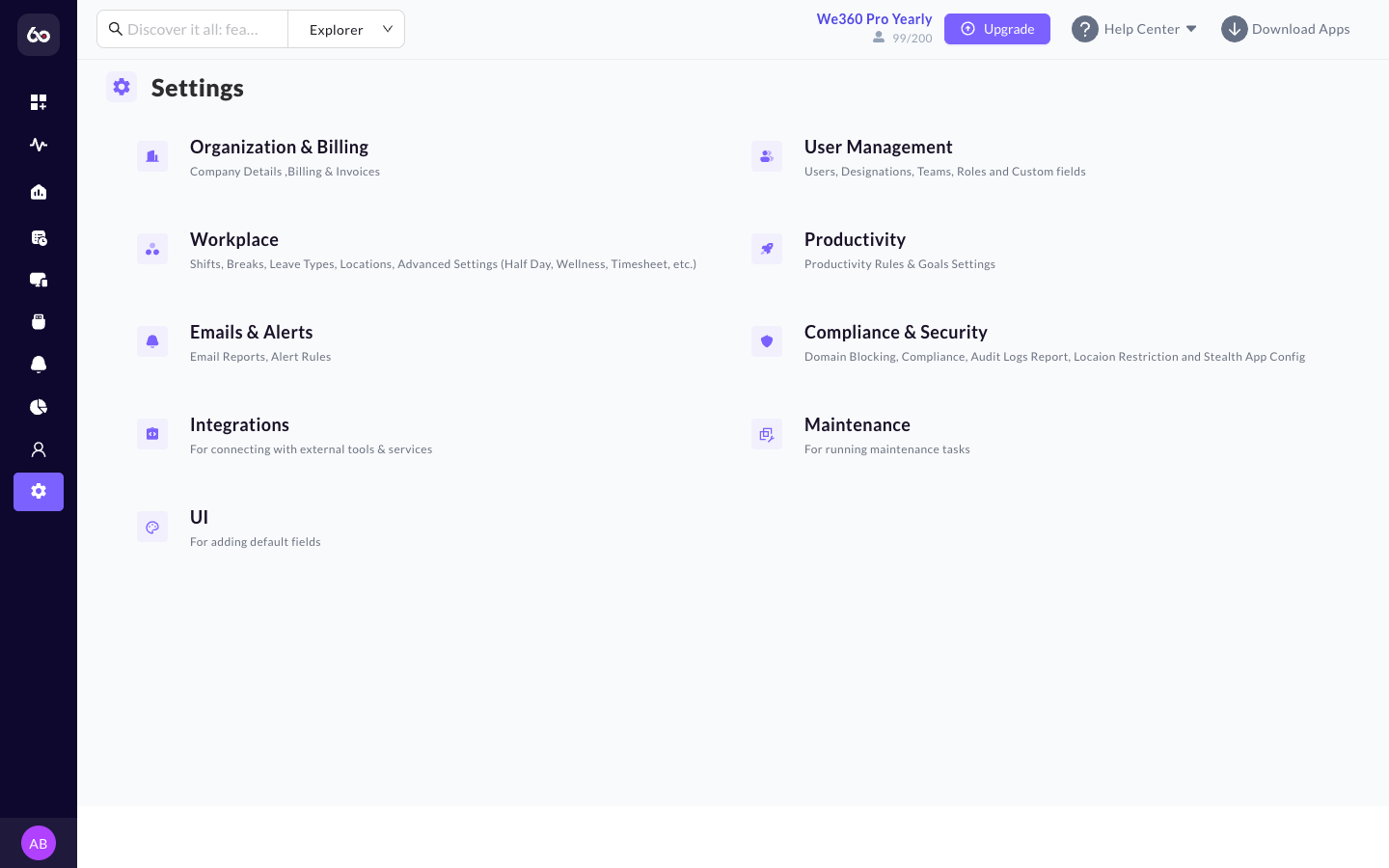
The Settings center allows administrators to configure every aspect of the platform.

<figure><img src="/files/vQjCDC3dsFZk1m7GhlKU" alt="Settings center main navigation with configuration categories"><figcaption><p>Settings center overview with all configuration categories</p></figcaption></figure>

<details>

<summary>Organization &#x26; Billing</summary>

Manage your overarching company details, global branding (logos, themes), and review billing invoices and subscription tiers. This is also where you update your company name, time zone, and plan details.

</details>

<details>

<summary>User Management</summary>

The core directory for managing access to the portal and tracking agent.

* Add, edit, or remove Users (individually or via bulk import).
* Configure employee Designations and Teams (including bulk team reassignment).
* Manage access control through **Role Settings** -- control which features and reports each role can see.
* Create Custom fields to capture non-standard employee data.
* Edit individual user tracking settings (screenshots, stealth mode, etc.).

</details>

<details>

<summary>Workplace (Attendance Settings)</summary>

Define the rules for how time is managed at the company.

* Create and manage standard working **Shifts** schedules, and assign or change shifts per team.
* Define **Break** policies and trackable **Leave Types**.
* Configure Advanced Settings including Half Days rules, Wellness tracking margins, and Timesheet policies (such as enabling auto-approval or requiring managerial sign-off).

</details>

<details>

<summary>Productivity</summary>

Establish what "productive time" means for your organization.

* **Application Policies**: Determine which specific tools or URLs are classified as productive, unproductive, or neutral. Supports advanced categorization modes (Default, Focus, Drop, DLP-Redaction).
* **Category Mapping**: Group related applications together for easier reporting (e.g., 'Social Media', 'Development Tools').
* **Goal Setting**: Define default daily/weekly productivity targets for Active Time and Productive Time.

</details>

<details>

<summary>Emails &#x26; Alerts</summary>

* **Email Reports**: Subscribe managers and administrators to automated daily or weekly summary emails.
* **Alert Rules**: Define the triggers that generate notifications (e.g., late arrivals, excessive idle time, or accessing blocked websites).

</details>

<details>

<summary>Compliance &#x26; Security</summary>

Protect your organization's digital environment.

* **Domain Blocking**: Restrict website access across teams with smart controls, ensuring focused work and compliance.
* **Compliance Configuration**: Adjust tracking strictness and stealth mode capabilities.
* **Audit Logs Report**: Review administrative actions taken within the portal by other managers for security auditing.

</details>

<details>

<summary>Integrations</summary>

Configure API connections and synchronize data with supported third-party platforms (e.g., HRMS, Project Management tools) from the integration dashboard.

</details>

<details>

<summary>UI Settings</summary>

Customize default fields, data visualization preferences, and portal appearances tailored to the organization's specific needs.

</details>

***

## In This Section

<table data-view="cards"><thead><tr><th></th><th></th><th data-hidden data-card-target data-type="content-ref"></th></tr></thead><tbody><tr><td><strong>Organization &#x26; Billing</strong></td><td>Company details, branding, and subscription management.</td><td><a href="/pages/t81e46AYKYbctFtibLN8">/pages/t81e46AYKYbctFtibLN8</a></td></tr><tr><td><strong>User Management</strong></td><td>Users, teams, roles, and custom fields.</td><td><a href="/pages/0utwTZCBnk1CJolNIIU3">/pages/0utwTZCBnk1CJolNIIU3</a></td></tr><tr><td><strong>Workplace</strong></td><td>Shifts, breaks, leave types, and attendance rules.</td><td><a href="/pages/K867qBmHIbBSVOwCcW3q">/pages/K867qBmHIbBSVOwCcW3q</a></td></tr><tr><td><strong>Productivity</strong></td><td>App policies, category mapping, and goal setting.</td><td><a href="/pages/GGGX7wJzHCWfdIGIYlsE">/pages/GGGX7wJzHCWfdIGIYlsE</a></td></tr><tr><td><strong>Emails &#x26; Alerts</strong></td><td>Automated email reports and alert rule configuration.</td><td><a href="/pages/zERfpGoUz7YZeRv39EDv">/pages/zERfpGoUz7YZeRv39EDv</a></td></tr><tr><td><strong>Compliance &#x26; Security</strong></td><td>Domain blocking, compliance config, and audit logs.</td><td><a href="/pages/SvWnIvsl0TgMIIsSebhT">/pages/SvWnIvsl0TgMIIsSebhT</a></td></tr><tr><td><strong>Integrations</strong></td><td>API connections and third-party platform sync.</td><td><a href="/pages/DRKW7Y5KpPCO2CVDJV0w">/pages/DRKW7Y5KpPCO2CVDJV0w</a></td></tr><tr><td><strong>UI Settings</strong></td><td>Data visualization and portal appearance preferences.</td><td><a href="/pages/bQwbfe37ZpxIUNgyFJSC">/pages/bQwbfe37ZpxIUNgyFJSC</a></td></tr></tbody></table>


---

# Agent Instructions: Querying This Documentation

If you need additional information that is not directly available in this page, you can query the documentation dynamically by asking a question.

Perform an HTTP GET request on the current page URL with the `ask` query parameter:

```
GET https://docs.we360.ai/reference/work-and-time-management/user-interfaces/portal/settings-center.md?ask=<question>
```

The question should be specific, self-contained, and written in natural language.
The response will contain a direct answer to the question and relevant excerpts and sources from the documentation.

Use this mechanism when the answer is not explicitly present in the current page, you need clarification or additional context, or you want to retrieve related documentation sections.
